
BLOG • TECHNICAL SEO
Why Is My Website Not Indexing on Google? Causes + Fixes
Your new service page went live last Monday. You search Google for it today. Nothing appears, not even your brand name. That silence worries any small business owner.

A live page and an indexed page differ. Google must find, crawl, and store a page. Only stored pages can appear in search results. Each stage can fail for a different reason. This guide matches each failure to its fix.
Quick answer: A website not indexing on google usually has one clear cause. A noindex tag or robots block stops storage directly. Weak discovery, duplicate content, or server errors also block pages. Search Console names the exact cause per page. Start there before changing anything else.
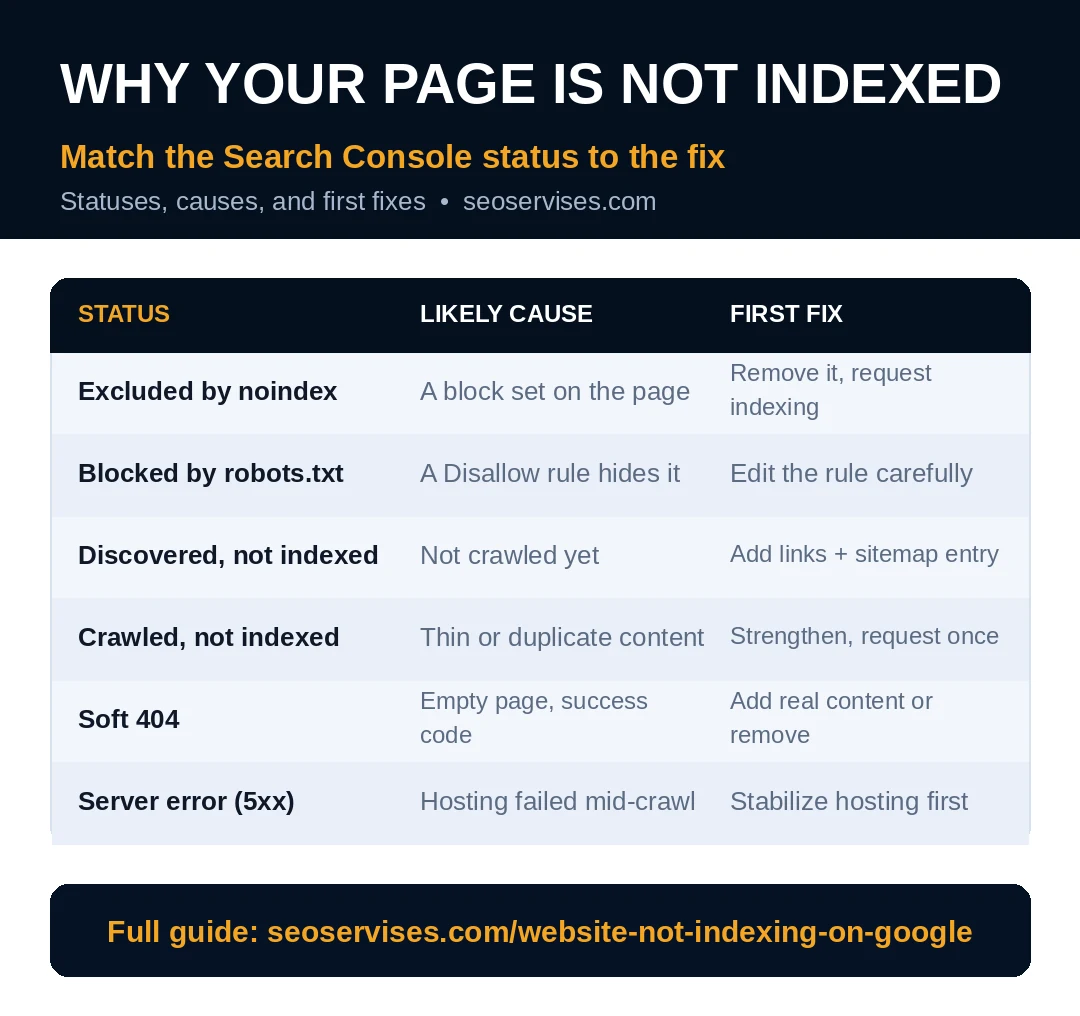
Match your Search Console status to a fix:
| Status shown | Plain meaning | First fix to try |
|---|---|---|
| Crawled, currently not indexed | Google saw it and skipped storage | Improve content and internal links |
| Discovered, currently not indexed | Google knows it, never crawled | Add links and check server load |
| Excluded by noindex tag | A tag orders Google to skip | Remove the tag from key pages |
| Blocked by robots.txt | Crawling is banned by a rule | Edit the blocking rule carefully |
| Server error 5xx | Page failed when Google visited | Fix hosting or page errors |
| Alternate page with canonical | Google picked another version | Check the canonical choice fits |
Step 1: Confirm the Problem in Ten Minutes
Do not guess before you measure anything. Two quick checks confirm a real indexing problem.
First, search Google for site:yourdomain.com in a browser. Indexed pages appear in a rough list there. A brand-new site may show very few pages. Zero results after a month signals real trouble.
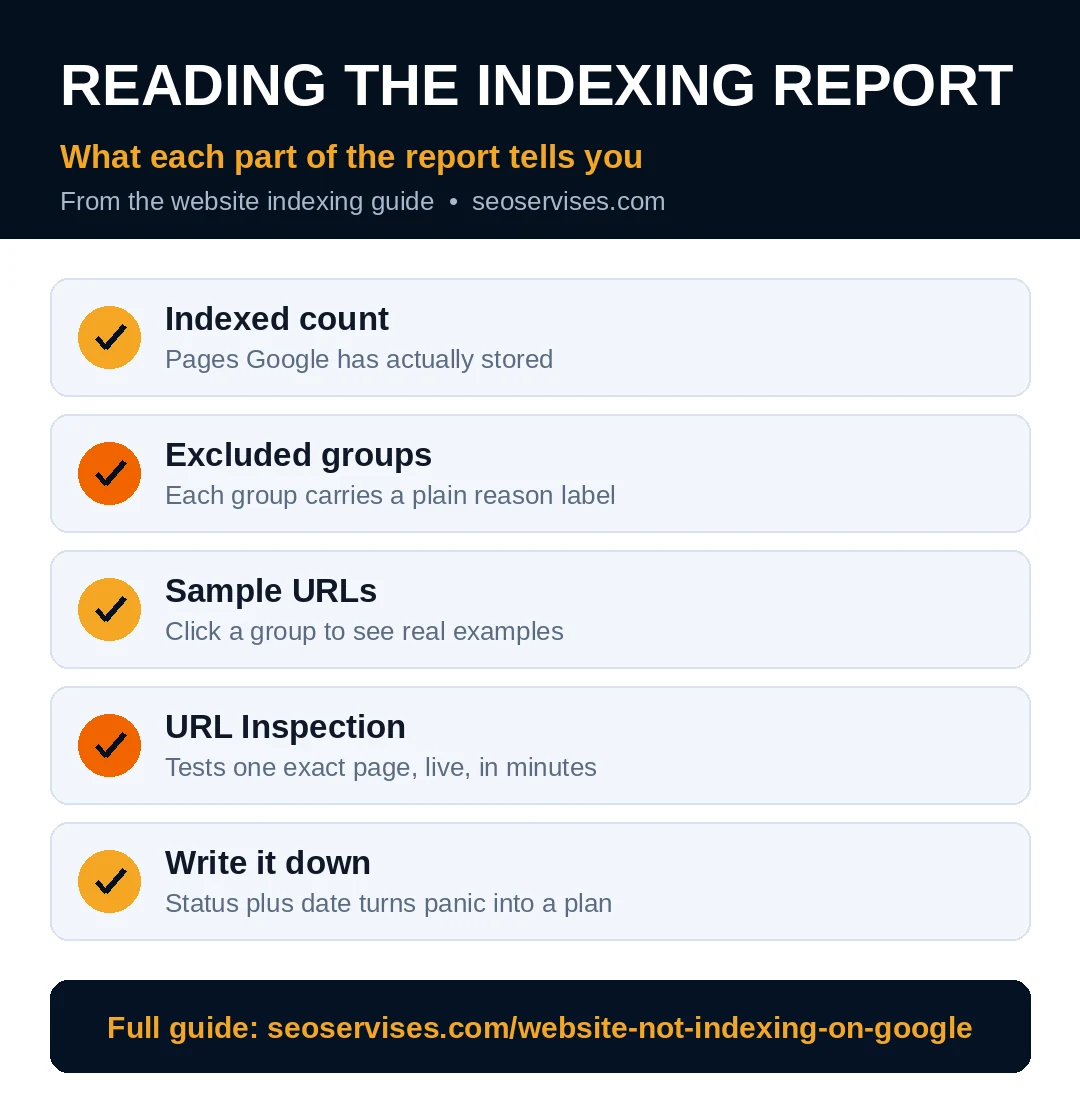
Second, open Search Console and click Pages. The report splits pages into indexed and excluded. Each excluded group carries a plain reason label. Click a group to see sample URLs. That label is your diagnosis starting point.
Test your most important page with URL Inspection. Paste the full address into the tool. It reports indexing status for that exact page. It also offers a live test button. The live test separates access problems from storage choices.
Write down what each test tells you today. Note the status, the date, and the page. That small record guides every later step. Owners who skip notes repeat old tests. They also change settings without clear reasons. A dated note turns panic into a plan. Keep it beside your fix routine below.
Cause Group A: Direct Blocks on the Page
Blocks are the most common cause we see. They are also the fastest to fix.
A noindex tag hides in the page code. WordPress users often inherit it from a setting. Settings, then Reading, holds one sitewide switch. SEO plugins can also set noindex per page. Check both spots for every missing key page.
A robots.txt rule can ban crawling outright. Open yourdomain.com/robots.txt in any browser window. Look for Disallow lines covering key folders. One broad rule can hide a whole section. Edit rules carefully, one line at a time.
Staging copies cause a sneakier version of this. Teams launch a redesigned site with staging settings. The live site keeps the test-site noindex values. Always recheck settings right after any launch day.
Password protection blocks Google just like visitors. A page behind a login cannot be indexed. Remove protection from pages meant for search traffic.
Does submitting a sitemap guarantee indexing?
No, a sitemap only helps Google discover pages. Discovery and storage are two separate decisions. Google may crawl a sitemap page and skip it. Quality, duplicates, and blocks still decide storage. Treat the sitemap as a map, not a promise. Fix quality and blocks alongside submission.
Cause Group B: Google Cannot Find the Page
Discovery fails when no path leads Google inward. New pages without links can wait for weeks.
Submit a clean sitemap inside Search Console first. The sitemap should list only live key pages. Remove error pages and redirects from it. A clean sitemap speeds up first discovery notably.
Link the page from related live content next. One link from a strong page helps greatly. Orphan pages have no internal links at all. They are the pages Google finds last.
Add the page to your menu or category listing. Navigation links carry strong discovery weight on small sites. A services grid on your homepage works well. Keep key pages within three clicks of home.
What does “Discovered – currently not indexed” mean?
Google knows the address but has not crawled it. The URL sits in a queue for later. Low crawl demand often causes this status. Server strain can also delay the crawl. Add internal links and a sitemap entry. Then wait while Google schedules the visit.
Cause Group C: Google Crawled It and Said No
Sometimes Google visits and still skips storage. That choice usually reflects page value signals.
Thin pages fail this test most often. A page with eighty words rarely earns storage. Add real detail, examples, and clear answers. Aim to beat the weakest ranked rival clearly.
Duplicate pages split Google’s decision as well. Two pages may repeat the same service text. Google stores one and skips the twin. Merge twins or set a clear canonical.
Wrong canonical tags cause quiet exclusions too. A page may point its canonical at another page. Google then stores the target page only. Check canonicals on every page that stays missing.
Soft 404 pages confuse the system further. These pages look like error pages to Google. They return a success code with empty content. Give each one real content or remove it.
What does “Crawled – currently not indexed” mean?
Google visited the page and chose to skip storage. That choice points at value or duplication issues. Thin content triggers this status most often. Near-duplicate pages trigger it as well. Strengthen the page and add internal links. Then request indexing once after real changes.
Cause Group D: Server Errors and Manual Actions
Technical failures can block whole sites at once. These causes need prompt, careful handling.
Server errors return 5xx codes during Google’s visit. Overloaded cheap hosting triggers them under crawl load. Check Crawl Stats in Search Console for patterns. Upgrade hosting when errors repeat every week.
Slow responses can also cut crawls short. Google may abandon pages that load too slowly. Our walkthrough to speed up a WordPress website fixes common causes. Work it after access problems are cleared.
Manual actions are rare but serious penalties. Google applies them for spam policy breaches. Open the Manual Actions report in Search Console. A clean report rules this cause out fast. Google explains each status in its indexing documentation as well.
Security problems can hide a site too. Hacked pages may get flagged or removed. Check the Security Issues report during diagnosis. Clean any hack before requesting new indexing.
What should I check if my website suddenly disappeared from Google?
Start inside Search Console, not on Google itself. Check Manual Actions and Security Issues first. Then look for a noindex added during redesigns. Expired SSL certificates also cause sudden drops. Crawl failures after hosting moves matter too. Fix the newest change before anything older.
The Fix Routine: Work It in This Order
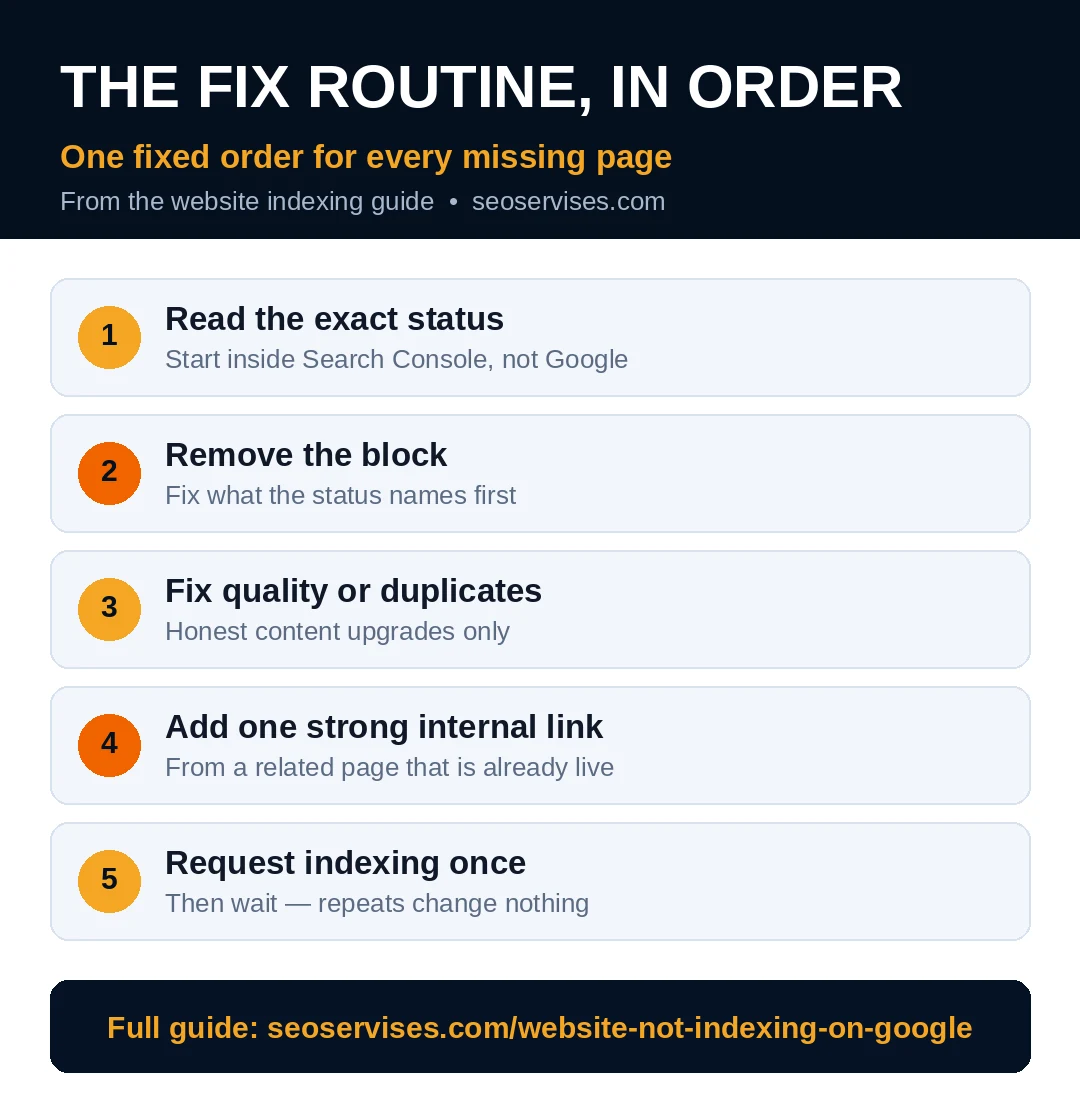
Follow one fixed order for every missing page. Guesswork wastes the limited request quota daily.
One, read the exact status in Search Console. Two, remove any block the status names. Three, fix quality or duplicate problems honestly. Four, add one strong internal link. Five, request indexing once for that page.
Can I force Google to index my page?
No tool can force Google to store a page. Request Indexing only asks for a fresh crawl. Google still decides storage after that crawl. Repeated daily requests change nothing at all. Fix the cause first, then request once. Real fixes beat repeated button presses.
How Long Fixes Take to Show Results
Each fix works on a different clock speed. Knowing the clock stops needless repeat changes.
Removing a block works fastest of all fixes. Request indexing right after you remove it. Many pages enter the index within days. Some take two weeks on new domains.
Content upgrades take longer to pay off. Google must crawl, judge, and store again. Give strong upgrades two to four weeks. Judge the result only after that window.
Table 2: Fix Order and Expected Wait
| Fix you applied | Typical wait | Your next step |
|---|---|---|
| Removed noindex or robots block | Days to two weeks | Request indexing once |
| Added sitemap and internal links | One to three weeks | Watch the Pages report |
| Improved thin or duplicate content | Two to four weeks | Request indexing after edits |
| Fixed repeated server errors | Days after stable hosting | Monitor Crawl Stats weekly |
Server fixes show in Crawl Stats first. Watch error counts fall across one week. Indexing usually follows once stability looks real. Changing hosts mid-diagnosis muddies every signal though. Finish one fix before starting another one.
Prevention Habits That Keep Pages Indexed
Prevention costs less than repeated rescue work. Build four habits into your publishing routine.
Check the Page indexing report every month. Catch new exclusions while they stay small. Review settings after every plugin or theme update. Updates occasionally reset indexing options without warning.
Publish each new page with links ready. Link it from one related page on launch day. Add it to a category or listing page. Confirm the sitemap picks it up automatically. Then verify it inside URL Inspection within a week. That routine prevents most discovery delays entirely.
Run a quarterly full check with our complete technical audit checklist guide. It covers blocks, canonicals, and server health together. Pair it with one crawl of your site. Small sites finish that routine in hours.
When fixes stall, outside help saves real time. Our technical SEO services team traces stubborn indexing faults daily. We explain each cause in plain words. You approve every change before we ship it.
Get Your Pages Back in Search
Missing pages cost calls, bookings, and sales quietly. The good news is simple and practical. Almost every cause leaves a label in Search Console. Match the label, apply the fix, retest once.
Stuck on a status you cannot decode? Contact us for a plain-English diagnosis. We will name the cause and the fix. No jargon and no long contracts needed.
Frequently Asked Questions
How long does it take for Google to index a new website?
Established domains often index new pages within days. Brand-new domains may need several weeks for trust. Setup quality shortens that wait a lot. A submitted sitemap and clear links help. Some waiting is normal for new sites.
How do I check if my website is indexed by Google?
Search site:yourdomain.com for a quick rough count. Use URL Inspection for one exact page instead. The Page indexing report lists every stored page. It also labels every excluded page clearly. Search Console always beats guessing from search results.
Can a website be live but not indexed?
Yes, live and indexed are different states entirely. One ticked WordPress checkbox can hide everything. A robots rule or noindex tag does the same. Even brand-new domains sit unindexed for days. Live only means visitors can open it.
Why is my website indexed but not ranking?
Indexing only makes a page eligible to appear. Ranking depends on relevance, quality, and authority. Your page may target the wrong search intent. Rivals may simply offer stronger answers today. Study the top results and improve honestly.
Should every page on my site be indexed?
No, some pages should stay out of search. Private, duplicate, and thin utility pages belong outside. Checkout and account pages help nobody in search. Keep the index focused on valuable pages. Quality beats raw page count every time.
How many indexing requests can I submit per day?
Search Console allows roughly ten manual requests daily. The exact quota is not published by Google. Spend requests only on fixed, important pages. Sitemaps handle bulk discovery far better anyway. Save requests for launches and key fixes.