
BLOG • TECHNICAL SEO
Google Search Console for Beginners: Set It Up and Use the 6 Reports That Matter
Your website already sends signals to Google daily. Search Console is where you read them. It shows which searches display your pages. It shows which pages Google cannot index.

Table of Contents
Many owners never open this free tool. Some open it once and feel lost. The screens look technical at first glance. Most reports, though, answer simple business questions.
This guide to Google Search Console for beginners covers setup and everyday use only. It suits owners opening the tool for the first time. Broken indexing has its own diagnosis guide elsewhere. Here, you will build a calm weekly habit.
Quick answer: Add your site as a Domain property. Verify ownership with one DNS record. Submit your sitemap on day one. Then check six reports on a weekly cycle. Performance, Inspection, Indexing, Sitemaps, Experience, and Links matter most.
Search Console setup at a glance:
- Add your site and pick a property type
- Verify that you own the site
- Submit your sitemap and watch first data
- Read the Performance report weekly
- Inspect pages and check indexing monthly
- Review experience and links each quarter
What Search Console Is, and What It Is Not
Search Console reports how Google sees your site. It lists the searches that showed your pages. It counts clicks, impressions, and average positions. It also flags pages Google could not index.
It is not a ranking tool or a fixer. It reports and diagnoses, nothing more. Rankings change when you act on its data. Think of it as a dashboard, not an engine.
The data comes straight from Google itself. No third-party tool can copy that view. That is why owners should own the account. Never let an agency hold the only login.
Is Google Search Console free?
Yes, it is fully free for every site. Google charges nothing and offers no paid tier. You need a Google account and site access. Verification proves the site is really yours. Every report in this guide costs zero dollars. Cost is never a reason to skip it.
What is the difference between Google Analytics and Search Console?
Search Console covers life before the click. It shows searches, impressions, and your pages in results. Analytics covers life after the click lands. It shows visits, behavior, and conversions on site. One tells how people find you. The other tells what they do next. Most owners need both tools running together.
Step 1: Add Your Site and Pick a Property Type
Open Search Console and sign in first. Use a Google account your business controls. Click Add Property in the top menu. You will choose between two property types.
A Domain property covers your whole domain. It includes www, non-www, http, and https versions. A URL prefix property covers one exact address. That narrower view misses your other versions.
Table 1: Domain Property Versus URL Prefix Property
| Choice | Covers | Verification | Best for |
|---|---|---|---|
| Domain property | Every version of your domain | One DNS record | Most business sites |
| URL prefix property | One exact address only | File, tag, or account link | One section of a site |
Choose the Domain property in most cases. It gives one complete view of your site. Our beginner setup advice starts there for simplicity. You can add a prefix property later if needed.
If a developer built your site years ago, check first. An old property may already exist under their account. Duplicate properties split data and confuse every report. Ask the builder before you add a fresh one.
Step 2: Verify That You Own the Site
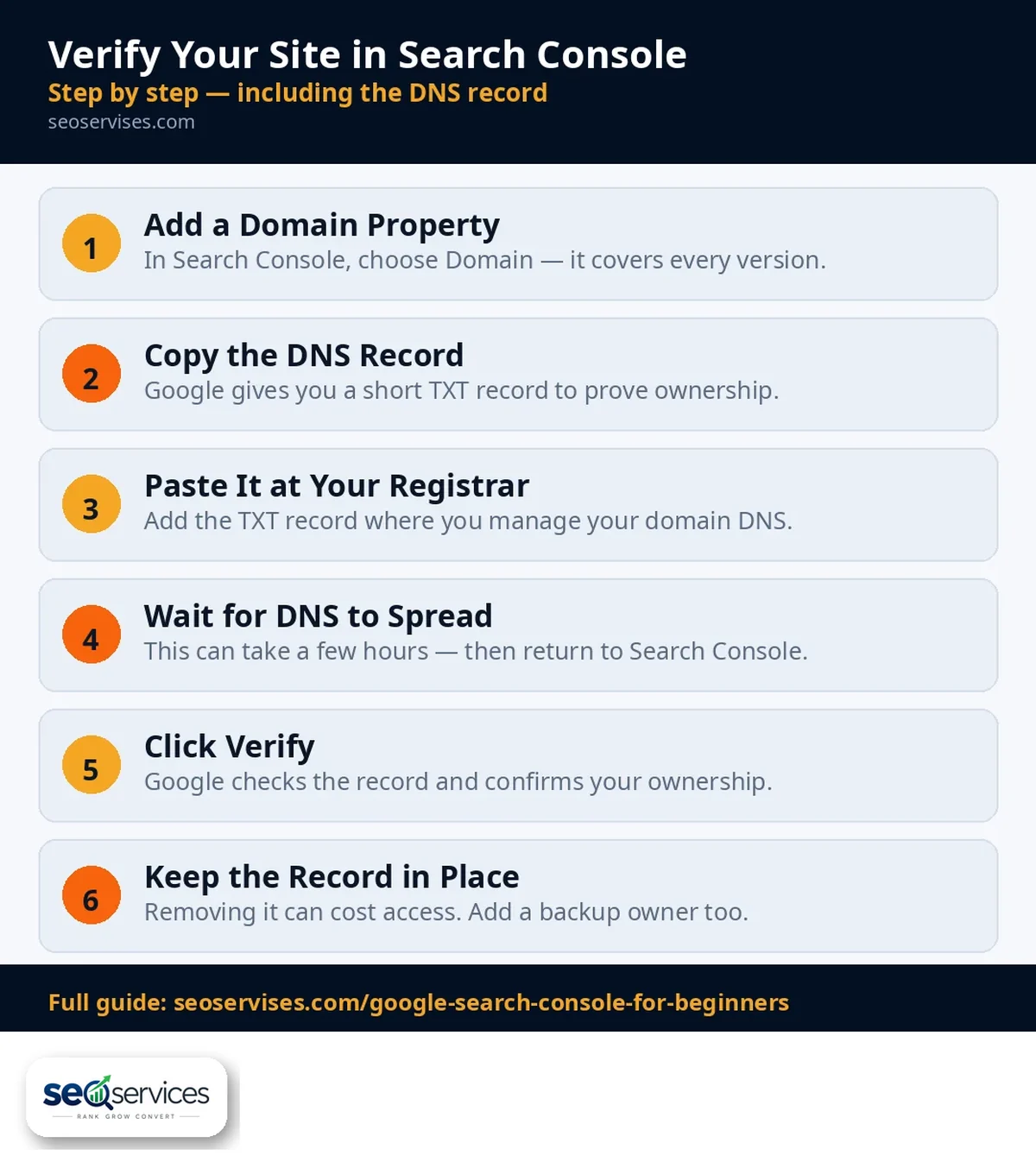
Google must confirm the site is yours. Domain properties verify with one DNS record. You paste a short text record at your registrar. Google checks it and confirms your ownership. The change can take a few hours to spread.
URL prefix properties offer more methods. You can upload a small HTML file. You can add a meta tag to your homepage. You can also link Analytics or Tag Manager accounts. Pick whichever route your setup makes easiest.
Keep the verification record in place afterward. Removing it can cost you your access. Add a second owner from your own team. That backup prevents lockouts when staff change.
Do I need to submit all versions of my website?
No, not with a Domain property. It already covers every protocol and subdomain version. Redirects should send old versions to one main address. Your sitemap should list only that main version. Adding each version separately just splits your view. One clean property keeps reporting simple and complete.
Step 3: Submit Your Sitemap and Watch First Data
Open the Sitemaps report after verification. Paste your sitemap address and click Submit. Most WordPress sites use sitemap_index.xml or sitemap.xml. Your SEO plugin generates that file for you. A Success status means Google fetched it fine.
Our guide to XML sitemaps explained covers what belongs inside one. Read it if your sitemap lists odd pages. Clean sitemaps help Google find real pages fast. They never replace good internal links, though.
How long before Search Console shows data?
Data collection starts the moment you verify. The first useful numbers appear within two to three days. History is not backdated for new properties. Your charts grow richer with each passing week. Check back after one week for real patterns. Patience during week one is completely normal.
The 6 Reports That Matter
Dozens of screens sit inside Search Console. Most guides to Google Search Console for beginners land on the same six. Beginners need six of them, no more. Learn these six and ignore the rest. Each one answers a plain business question.
Report 1: Performance
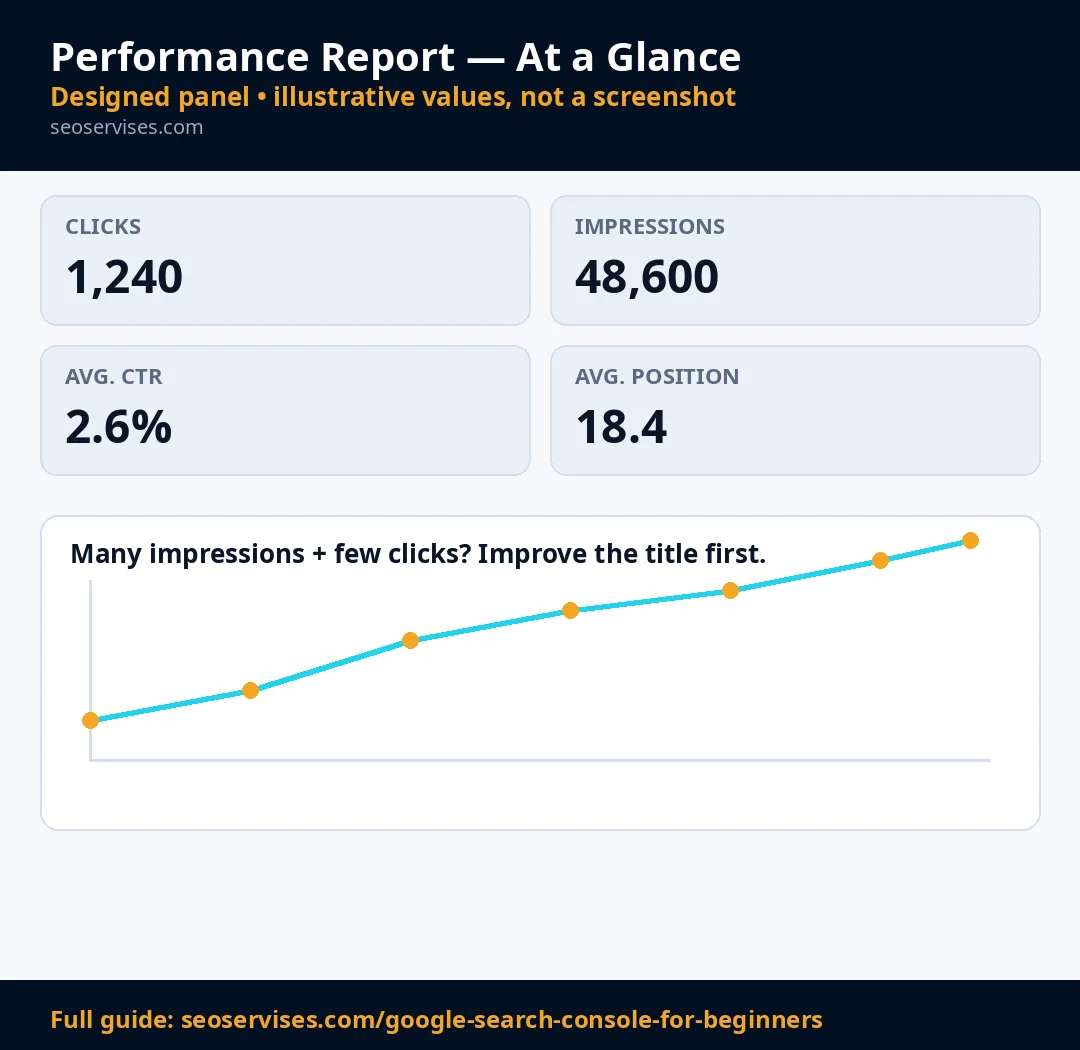
This report shows clicks, impressions, CTR, and position. Clicks count visits from Google search results. Impressions count how often your pages appeared. CTR tells what share of views became clicks. Position shows your average rank per search.
Filter by Queries to see exact search phrases. Filter by Pages to see your top content. Look for pages with many impressions, few clicks. A better title often lifts those pages quickly.
Compare date ranges before you judge any change. Set the report to compare this month with last. Rising impressions with flat clicks still mean progress. Google is showing your pages to more searchers. Clicks usually follow once positions climb higher. Judge trends over months, not single days.
Report 2: URL Inspection
This tool checks one page at a time. Paste any URL from your site. It tells you if the page is indexed. It shows the last crawl date too. It also reports mobile and enhancement issues.
Use it after publishing an important page. Use it after fixing a problem page. The Request Indexing button asks Google to revisit. That request never guarantees quick inclusion, though.
Report 3: Page Indexing
This report lists indexed and unindexed pages. It groups unindexed pages by clear reasons. Some reasons are normal and need no action. Thank-you pages and redirects belong there by design.
Worry only when key pages sit unindexed. Service pages and product pages must be indexed. If yours are missing, follow our guide on why a website is not indexing on Google. That guide handles diagnosis step by step. This overview stays at the everyday level.
Report 4: Sitemaps
This small report confirms your sitemap status. It shows when Google last read the file. It counts discovered pages from that file. A Failed status means the address needs checking.
Resubmit the sitemap after big site changes. New sections and removed pages both count. The report takes ten seconds to check. Add it to your monthly routine.
Report 5: Experience and Core Web Vitals
This report grades page speed and stability. It uses real visitor data, not lab tests. Pages land in Good, Needs Improvement, or Poor groups. Slow pages on phones deserve your first attention.
Most owners should not fix these issues alone. Share the report with your developer instead. Ask them to fix the worst group first. Recheck the grades after each fix ships.
Report 6: Links
This report lists who links to your site. It shows your most linked pages too. It also lists your top internal links. Check it when a partner mentions your business. Confirm their link actually went live.
Sudden piles of odd links deserve a closer look. Note the domains and ask for advice early. Clean link profiles support everything else you build.
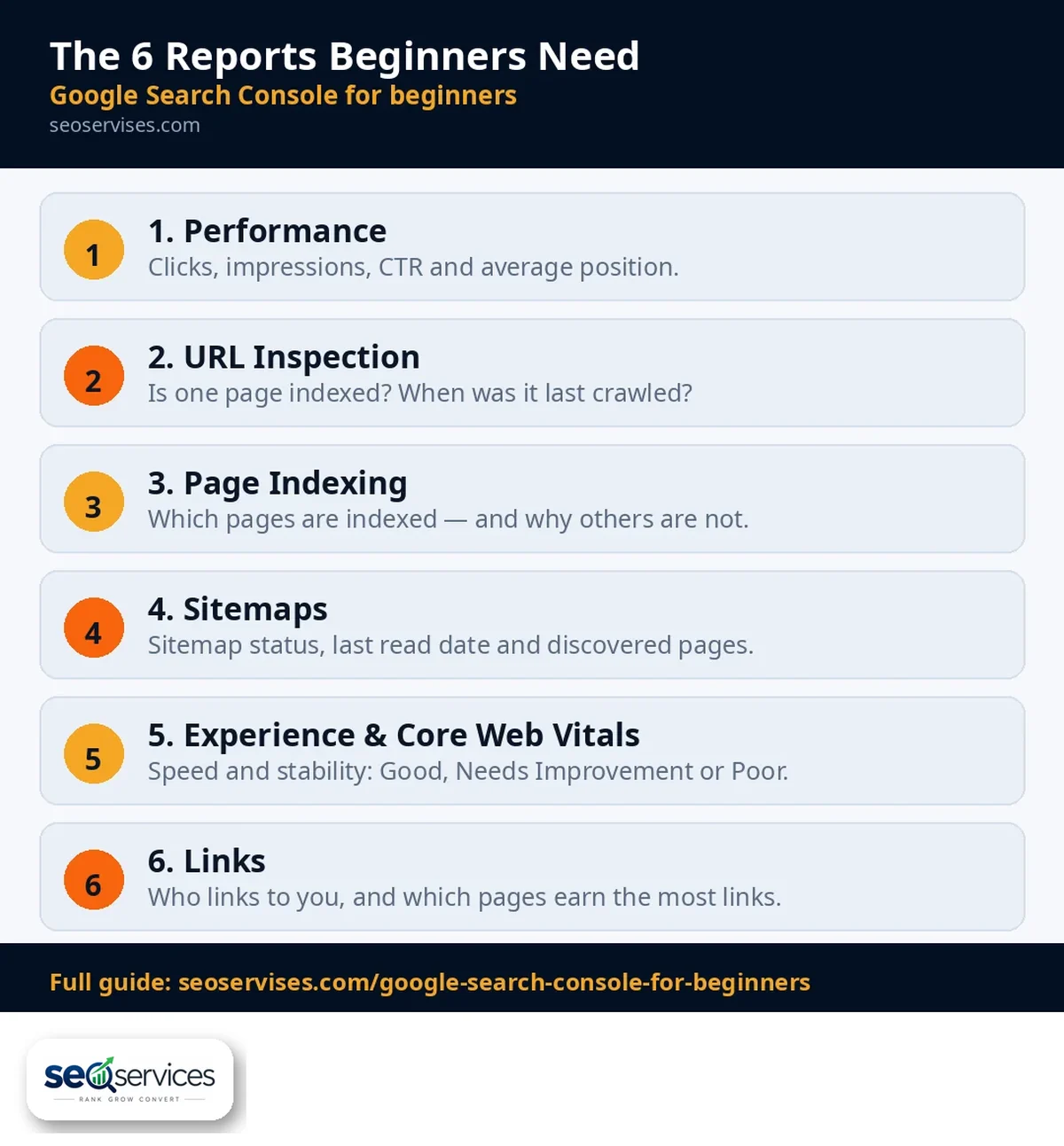
Table 2: A Simple Weekly Routine
| When | Report | What to look for |
|---|---|---|
| Weekly | Performance | Queries rising or slipping |
| Weekly | URL Inspection | New key pages indexed |
| Monthly | Page Indexing | Key pages missing |
| Monthly | Sitemaps | Success status and date |
| Quarterly | Experience | Poor pages on mobile |
| Quarterly | Links | New or odd linking sites |
How often should I check Search Console?
Fifteen minutes a week covers the routine well. Check Performance and one new page each week. Review Indexing and Sitemaps once a month. Save Experience and Links for each quarter. Daily checking adds stress without new insight. Data also lags two to three days behind.
Know When a Report Points to Bigger Work
Some findings sit beyond a beginner routine. A manual action notice needs expert help fast. Security issue alerts need same-day attention too. Falling indexed pages can signal deeper technical trouble.
Our technical SEO audit checklist helps you judge the scale. Work through it before you panic or pay. Many alerts turn out small and fixable. A few need a full professional audit.
Our technical SEO services handle that deeper work for owners. We read the reports and fix the causes. You keep full ownership of your account throughout.
Ready to Read Your Own Search Data?
Set up your property this week. The whole job takes under an hour. Your first real data arrives within days. Six reports will then guide your decisions calmly. That steady habit is the real value of Google Search Console for beginners.
Want help setting up or reading your reports? Contact us and tell us your site address. We will point you to your first fixes.
Frequently Asked Questions
Does Search Console improve rankings by itself?
No, the tool itself changes nothing on Google. It reports and diagnoses your search presence. Rankings improve when you act on its findings. Better titles, fixed pages, and stronger content do the work. Treat the reports as a map, not the vehicle. Owners who act monthly gain the most.
Why do impressions not match clicks?
An impression means your result appeared on screen. A click means someone chose that result. Many searchers read several listings before choosing one. The gap between them is your CTR. Pages with high impressions and low clicks need better titles. That fix is often the fastest win available.
What is the difference between a Domain and a URL prefix property?
A Domain property covers every version of your domain. That includes subdomains and both protocols together. A URL prefix property covers one exact address only. Domain verification uses one DNS record. Prefix verification allows files, tags, or linked accounts. Most owners should start with the Domain option.
Do I need Search Console if I have Analytics?
Yes, because the two tools answer different questions. Analytics tracks behavior after visitors reach your site. Search Console tracks how you appear in search. It also reports indexing, which Analytics never shows. The pair together covers find, click, and act. Both are free, so run both.
How do I give my SEO or developer access?
Add them under Settings, then Users and Permissions. Choose Full or Restricted access for outside help. Keep ownership with accounts your business controls. Google explains safe sharing in its post on Search Console users and permissions. Remove access when any working relationship ends. Review the user list once a year.





One Comment