
BLOG • WORDPRESS SEO
WordPress SEO Checklist 2026: The Complete Step-by-Step Guide
WordPress gives you a strong starting point for Google rankings. It does not finish the job for you. Most WordPress sites miss basic settings that quietly block traffic.

This guide fixes that problem in a clear order. Set up your foundation first. Then handle speed, content, and links. It is the setup behind our professional WordPress SEO services.
Quick answer: This wordpress seo checklist covers ten setup steps in priority order. Start with hosting, HTTPS, and one good SEO plugin. Then fix speed, map keywords, and link your pages together. Most sites finish the core setup in three to five hours.
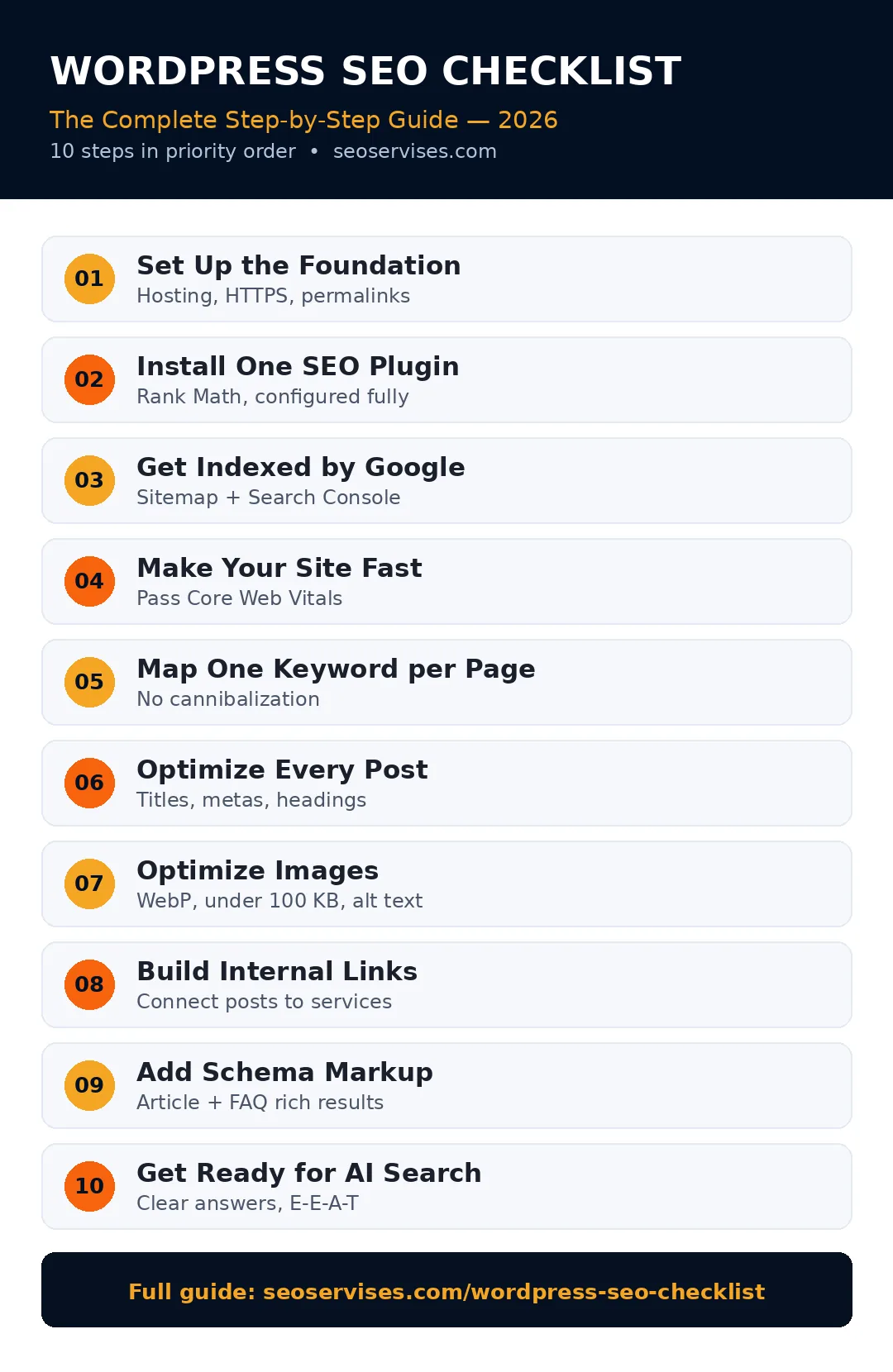
The ten steps at a glance:
- Hosting, theme, HTTPS, and permalinks
- One SEO plugin, configured properly
- Sitemap submitted, Search Console connected
- Core Web Vitals targets passed
- One keyword mapped to each page
- Every post optimized before publishing
- Images compressed and described
- Internal links between related pages
- Schema markup for rich results
- Content ready for AI search answers
Table 1: The Priority Checklist
Work through this table from top to bottom. Early tasks protect every page on your site.
| Task | Impact | Time needed |
|---|---|---|
| Switch on HTTPS and fix permalinks | High | 30 minutes |
| Install and configure Rank Math | High | 45 minutes |
| Submit XML sitemap to Search Console | High | 15 minutes |
| Remove the indexing blocker setting | High | 2 minutes |
| Pass Core Web Vitals targets | High | 1–2 hours |
| Map one keyword per page | High | 1 hour |
| Set titles and meta descriptions | Medium | 10 minutes per page |
| Compress images and add alt text | Medium | 5 minutes per batch |
| Add internal links to older posts | Medium | 20 minutes per post |
| Add FAQ and Article schema | Medium | 15 minutes per post |
Step 1: Set Up the Foundation
Good rankings start before you publish anything. Your hosting, theme, and basic settings decide your ceiling.
Choose hosting that loads pages fast on mobile phones. Most visitors will arrive on a phone. Slow hosting cancels out every other improvement.
Pick a lightweight theme built for speed and clean code. Heavy themes add code that slows every page. A simple theme also reduces plugin conflicts later.
Turn on HTTPS with an SSL certificate. Most hosts include a free certificate in your plan. Google treats HTTPS as a basic trust signal.
Set your permalinks to the “Post name” option. Find it under Settings, then Permalinks. Clean URLs beat messy numbered links for everyone. Visitors and Google both understand them faster.
Turn off the “Discourage search engines” setting. Find it under Settings, then Reading. Developers often switch it on during site builds. That one checkbox can hide your whole site.
Is WordPress good for SEO?
Yes, WordPress is one of the best platforms for SEO. It produces clean code and logical site structure. Plugins handle technical tasks like sitemaps and schema automatically. You still control your titles, content, and links. That mix of automation and control suits small businesses well. No platform ranks a site by itself, though.
Step 2: Install and Configure One SEO Plugin
WordPress core handles basics, but it skips key SEO controls. It gives you no meta description fields.
Download Rank Math free from WordPress.org. It covers sitemaps, schema, redirects, and meta fields. The free version handles everything in this guide. If you are comparing options, read our Rank Math vs Yoast comparison before you decide.
Run the setup wizard right after activation. Connect your Google Search Console account during setup. Add your business details when the wizard asks. Those details feed your Organization schema later.
Set your title separator and homepage title format. Turn on the sitemap module inside Rank Math settings. Check that posts and pages appear in the sitemap.

Why do I need an SEO plugin for WordPress?
An SEO plugin adds controls that WordPress lacks by default. You get meta title and description fields for every page. You get an automatic XML sitemap and schema markup. You also get redirect tools and content analysis scores. Without one, you must code these features by hand.
Can I use two SEO plugins at the same time?
No, never run two SEO plugins together. Both plugins will output competing titles and meta tags. They will generate duplicate sitemaps and conflicting schema. Google may read the wrong version of your data. Pick one plugin, migrate your settings, then delete the other.
Step 3: Get Indexed by Google
Google cannot rank pages it has never found. Indexing work takes about fifteen minutes total.
Open your sitemap at yoursite.com/sitemap_index.xml in a browser. Confirm your main pages appear in the list.
Submit that sitemap inside Google Search Console. Google publishes a clear guide to sitemaps and indexing in Search Central. Follow it if any step looks unfamiliar.
Check your robots.txt file at yoursite.com/robots.txt. It should never block your main content folders. One wrong line can hide whole sections.
Set tag and date archives to noindex in Rank Math. Thin archive pages add little value for visitors. They also split your crawl budget.
Test one key page with the URL Inspection tool. It confirms Google can fetch and index it. Fix any errors before publishing more content.
Step 4: Make Your Site Fast
Slow pages lose visitors and rankings together. Google measures real visitor speed through Core Web Vitals.
Install a caching plugin and turn on page caching. Caching serves saved copies instead of rebuilding pages. Your host may offer built-in caching already.
Compress images before you upload them. Large photos are the top cause of slow pages. Step 7 covers the full image routine.
Remove plugins you no longer use. Every active plugin adds code to your site.
Table 2: Core Web Vitals Targets
| Metric | Good score | Free tool to check |
|---|---|---|
| LCP (loading) | Under 2.5 seconds | PageSpeed Insights |
| INP (responsiveness) | Under 200 milliseconds | PageSpeed Insights |
| CLS (visual stability) | Under 0.1 | Search Console |

Run PageSpeed Insights on your homepage and top service page. Fix the red and orange items first. Retest after each change, not after ten changes.
Speed work can get technical very fast. Caching conflicts and render-blocking code confuse many owners. Our technical SEO specialists handle this work daily. Get help if scores stay red.
Step 5: Map One Keyword to Each Page
Keyword mapping stops your pages from fighting each other. Each page targets one main search term. This structure tells Google which page deserves each ranking.
Start with the services you actually sell. List each service and the areas you serve. Then list questions customers ask before buying. Those questions become blog post topics.
Use Google itself for free keyword ideas. Type a service into search and read the suggestions. Check the “People Also Ask” questions too. Note the exact words customers use.
Assign one primary keyword to every existing page. Write the mapping in a simple spreadsheet. Add columns for URL and search intent.
Never target one keyword with two different pages. Google splits its trust between competing pages. Both pages then rank worse than one strong page.
Step 6: Optimize Every Post Before You Publish
Consistency beats occasional perfection in on-page work. Run the same short routine on every post.
Write a unique meta title for the post. Put the primary keyword near the start. Keep it under sixty characters.
Write a meta description that sells the click. Keep it between 150 and 160 characters. Include the keyword once and one clear benefit.
Use one H1 heading, which is your post title. Break sections with H2 headings in logical order. Use H3 headings for smaller points inside sections.
Clean up the URL slug before publishing. Short slugs with the keyword work best. Never change a slug later without a redirect.
Add your keyword naturally in the first hundred words. Then write normally for the reader after that. Our on-page SEO team audits this balance weekly.
Check the post preview on your phone before publishing. Most readers will see the phone version.
Step 7: Optimize Images the Right Way
Images slow down more WordPress sites than any plugin. A simple routine fixes that problem fast.
Rename files before you upload them. Use short, descriptive names with hyphens between words. A name like plumber-van-houston.jpg tells Google plenty. Camera names like IMG_2041.jpg tell it nothing.
Convert images to WebP format before uploading. WebP files are far smaller than JPEG files. They keep the same visual quality for visitors. Keep every image file under 100 KB.
Write honest alt text for every image. Describe what the image actually shows. Add a keyword only when it fits naturally. Alt text also helps visitors using screen readers.
Resize images to the size your page displays. Never upload a huge photo and shrink it with settings. The browser still downloads the full file. That waste hurts your LCP score directly.
Step 8: Build Internal Links That Pass Value
Internal links guide visitors and Google through your site. Pages with more internal links usually rank better.
Link each new post to its parent service page. Use a natural anchor that describes the destination. Vary your anchor wording across different posts. Identical anchors everywhere look forced and spammy.
Link older related posts to your new post too. Publishing should trigger updates in both directions.
How many internal links should a WordPress blog post have?
Most posts work well with three to five internal links. Link to one parent service page first. Add two or three links to related posts. Finish with one link to a contact or quote page. Quality beats quantity every time here. Ten random links help nobody, including Google.
Step 9: Add Schema Markup
Schema markup labels your content in code Google understands. It can earn rich results like stars and FAQ dropdowns. Rich results take more space and win more clicks. Rank Math adds basic schema without coding.
Set Article schema as the default for blog posts. Add your author name and publish dates. Accurate dates help Google judge freshness.
Add FAQ schema to posts with question sections. Match the schema text exactly to visible page text. Mismatches can get the rich result removed.
Add Organization or LocalBusiness schema sitewide. Include your business name, logo, and contact details. Keep these details identical everywhere online.
Validate your markup with Google’s Rich Results Test. Run it on one post after setup. Fix any errors it reports.
Step 10: Get Ready for AI Search
AI Overviews now answer many searches above regular results. Clear, well-structured content gets cited in those answers. Messy content gets ignored.
Answer questions directly under question-style headings. Keep each core answer between forty and sixty words. AI tools lift short, complete answers most often.
Add a named author and bio to every post. Real authors signal real experience behind the content.
Cover topics fully instead of publishing thin posts. One strong guide beats five shallow articles. Depth gives AI tools more reasons to cite you.
Update older posts with fresh facts each year. Remove advice that Google or tools made outdated.
How Long Until You See Results?
New sites need patience, even with perfect setup. Google must crawl, index, and test your pages. Steady improvement usually starts in month two or three.
How long does it take to rank a WordPress site on Google?
Most small business sites see early movement within three months. Competitive keywords often need six months or longer. Your timeline depends on competition, content quality, and backlinks. Brand-new domains rank slower than established ones. Consistent publishing shortens the wait more than any trick. Track progress monthly in Search Console, not daily.
Remember the scale of the platform you chose. WordPress powers over 40% of all websites worldwide. That means endless themes, plugins, and help available. It also means competitors use the same tools. Execution quality separates your site from theirs.
Set realistic goals for your first quarter. Aim for full indexing and easy keyword wins first.
Your Ongoing Routine
Setup gets you started, but routine keeps you growing. Split maintenance into weekly, monthly, and quarterly habits.
Weekly: Check Search Console for errors and new queries. Publish or update one piece of content. Reply to new reviews and comments. Total time: about one hour.
Monthly: Review your top ten pages in Search Console. Refresh the weakest two pages with better content. Check for broken links and fix them.
Quarterly: Run a full site speed test again. Audit your plugins and delete unused ones. Compare rankings against your top three competitors.
Score your site: the self-check
Give yourself one point for each item you already have. Be honest, because nobody sees this but you.
- HTTPS active on every page
- Permalinks set to “Post name”
- One SEO plugin installed and configured
- Sitemap submitted in Search Console
- Core Web Vitals passing on mobile
- Keyword map covering every page
- Meta titles written for all key pages
- All images in WebP under 100 KB
- Internal links on every post
- Schema validated with no errors
Scoring guide: Eight to ten points means a strong foundation. Five to seven means a weekend of fixes remains. Under five means start again at Step 1.
Related guides: once the checklist is done, avoid the common WordPress SEO mistakes that undo good setups.
Ready to Skip the DIY Route?
This checklist will carry a small site a long way. It still takes hours to set up correctly.
Our team builds and manages this entire setup for you. Explore our WordPress SEO services to see what is included. Or contact us for a free first look at your site.
Frequently Asked Questions
What is the best SEO plugin for WordPress?
Rank Math is our top pick for most small business sites. It includes sitemaps, schema, and redirects free. Yoast SEO is also reliable and widely used. Choose one, configure it fully, and never run both together.
Does WordPress have built-in SEO?
WordPress includes basic SEO-friendly features by default. It creates clean permalinks and editable titles. It lacks meta description fields, sitemaps, and schema controls. A plugin adds those missing pieces most business sites need.
How often should I publish new content for SEO?
Publish one quality post per week if you can. Consistency matters more than raw volume for small sites. One strong post beats four thin posts every time. Update older posts between new ones to stay active.
How do I check if my WordPress site is indexed on Google?
Search Google for site:yourdomain.com to see indexed pages. For exact checks, paste a URL into Search Console’s Inspection tool. It reports whether that page is indexed. It also shows errors blocking the page. New pages may take days to appear.
Do I need to know how to code to do WordPress SEO?
No, you can handle most WordPress SEO without code. Plugins manage sitemaps, schema, and redirects for you. Themes and page builders control design visually. Coding only helps with advanced speed or customization work.






4 Comments