
BLOG • WORDPRESS SEO
15 WordPress SEO Mistakes That Are Hurting Your Rankings
Your WordPress site can lose rankings without any penalty notice. Small settings and habits quietly drain traffic every week. Most owners never see the damage happening.

This guide lists fifteen common wordpress seo mistakes in plain order. Each mistake includes a fast, clear fix. Work through the list and check your site today. These fixes support our hands-on WordPress SEO services for busy owners.
Quick answer: The worst errors are blocked indexing, duplicate titles, and slow mobile pages. Next come keyword conflicts, broken links, and missing image text. Fix blockers first, then content issues, then polish items. Most sites clear the full list in one weekend.
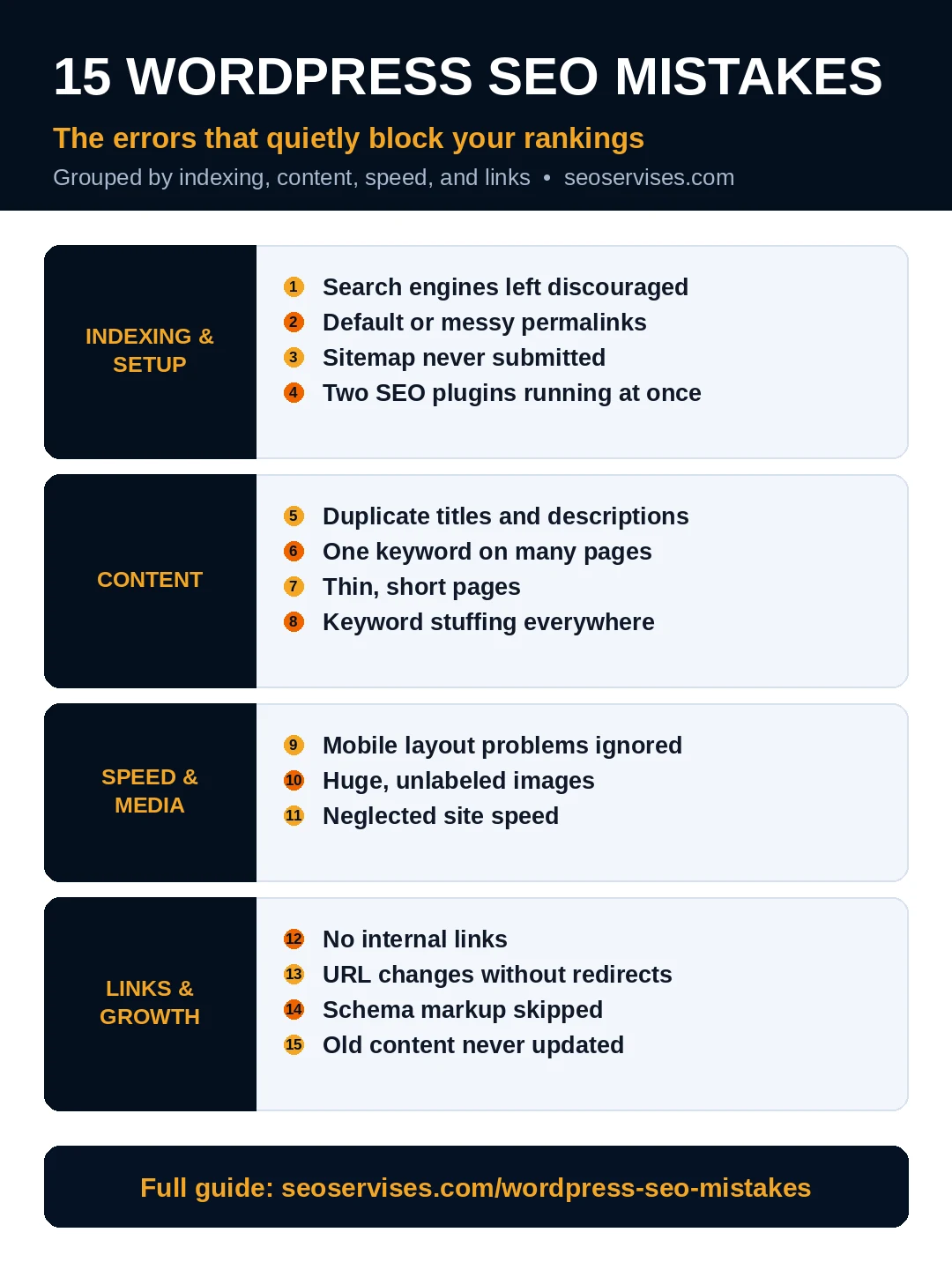
How this guide is organized:
- Indexing and settings mistakes that hide your site
- Content mistakes that split or waste rankings
- Speed and image mistakes that hurt experience
- Linking and maintenance mistakes that compound slowly
Note the angle here before you start fixing. Our checklist post covers the correct setup steps. This post covers only errors and their repairs. Use both together for a complete site review.
Mistake 1: Leaving Search Engines Discouraged
One checkbox can hide your entire site from Google. Developers enable it during builds and forget it later. Your pages then drop out of search results silently.
Open Settings, then Reading, inside your dashboard. Uncheck the box that discourages search engines. Save the change and recheck it after every launch.
Why is my WordPress site not showing on Google?
Start with the Reading settings checkbox described above. Then check your SEO plugin for stray noindex flags. Submit your sitemap inside Google Search Console next. Use URL Inspection on one key page for confirmation. Most hidden sites trace back to one small setting.
Mistake 2: Using Default or Messy Permalinks
Default WordPress URLs show numbers instead of words. Visitors and Google learn nothing from those links. Messy URLs also look untrustworthy in search results.
Set permalinks to the Post name option. Find it under Settings, then Permalinks. Redirect old URLs if your site already ranks. Never change live URLs without proper redirects.
Mistake 3: Skipping a Sitemap Submission
WordPress creates a sitemap, but Google still needs direction. Many owners never submit it in Search Console. New pages then wait longer for discovery and indexing.
Open your sitemap address in a browser first. Submit that address inside Google Search Console. Google documents the full process in Search Central sitemap guidance. Recheck the status report after one week.
Mistake 4: Running Two SEO Plugins at Once
Two SEO plugins output competing titles and schema. Google may read the wrong version of your data. Conflicts also slow your admin dashboard noticeably.
Pick one plugin and keep only that one. Migrate settings before you delete the other. Test your titles and sitemap after the cleanup.
Mistake 5: Writing Duplicate Titles and Descriptions
Copying one title across many pages confuses Google. Each page then competes with its own siblings. Click rates fall because results look identical.
Write a unique title for every important page. Put the main topic near the start. Write a fresh description that sells the click. Keep descriptions honest about the page content.
Mistake 6: Targeting One Keyword on Many Pages
Several pages chasing one keyword split your authority. Google cannot decide which page deserves the ranking. All of them usually rank worse as a result.
Map one primary keyword to one page only. Merge thin overlapping posts into one stronger page. Redirect the weaker URLs to the keeper page. Our complete WordPress SEO checklist shows the mapping routine step by step.
What is keyword cannibalization in WordPress?
It happens when your own pages compete for one keyword. Google rotates them or ranks none of them well. Symptoms include rankings that swap pages weekly. Fix it by merging, redirecting, or retargeting pages. One clear page per topic wins almost every time.
Mistake 7: Publishing Thin, Short Pages
Pages with very little useful content rarely rank. They answer no question fully for the reader. Google prefers one complete page over five stubs.
Expand important pages with real detail and examples. Answer the questions your customers ask daily. Add clear headings, lists, and helpful visuals. Delete or merge pages you cannot improve honestly.
Mistake 8: Stuffing Keywords Into Every Paragraph
Forcing your keyword into every sentence reads badly. It also signals manipulation to modern search systems. Readers leave fast, and rankings follow them down.
Write for the reader first, always. Use your keyword in the title and opening lines. Add related phrases naturally across the page. If a sentence sounds odd aloud, rewrite it.
Mistake 9: Ignoring Mobile Layout Problems
Google indexes and ranks the mobile version first. Tiny text and crowded buttons hurt real visitors daily. Many owners only ever check the desktop view.
Test every key page on your own phone. Fix overlapping text, small tap targets, and popups. Choose responsive themes and test after each change. WordPress.org stresses mobile readiness in its official support guides.
Mistake 10: Uploading Huge, Unlabeled Images
Large photos are the top cause of slow pages. Missing alt text wastes a clear ranking signal. Camera file names tell Google nothing useful either.
Resize images to the displayed size before upload. Convert files to WebP and compress them well. Rename files with short, descriptive words. Write honest alt text for every image.
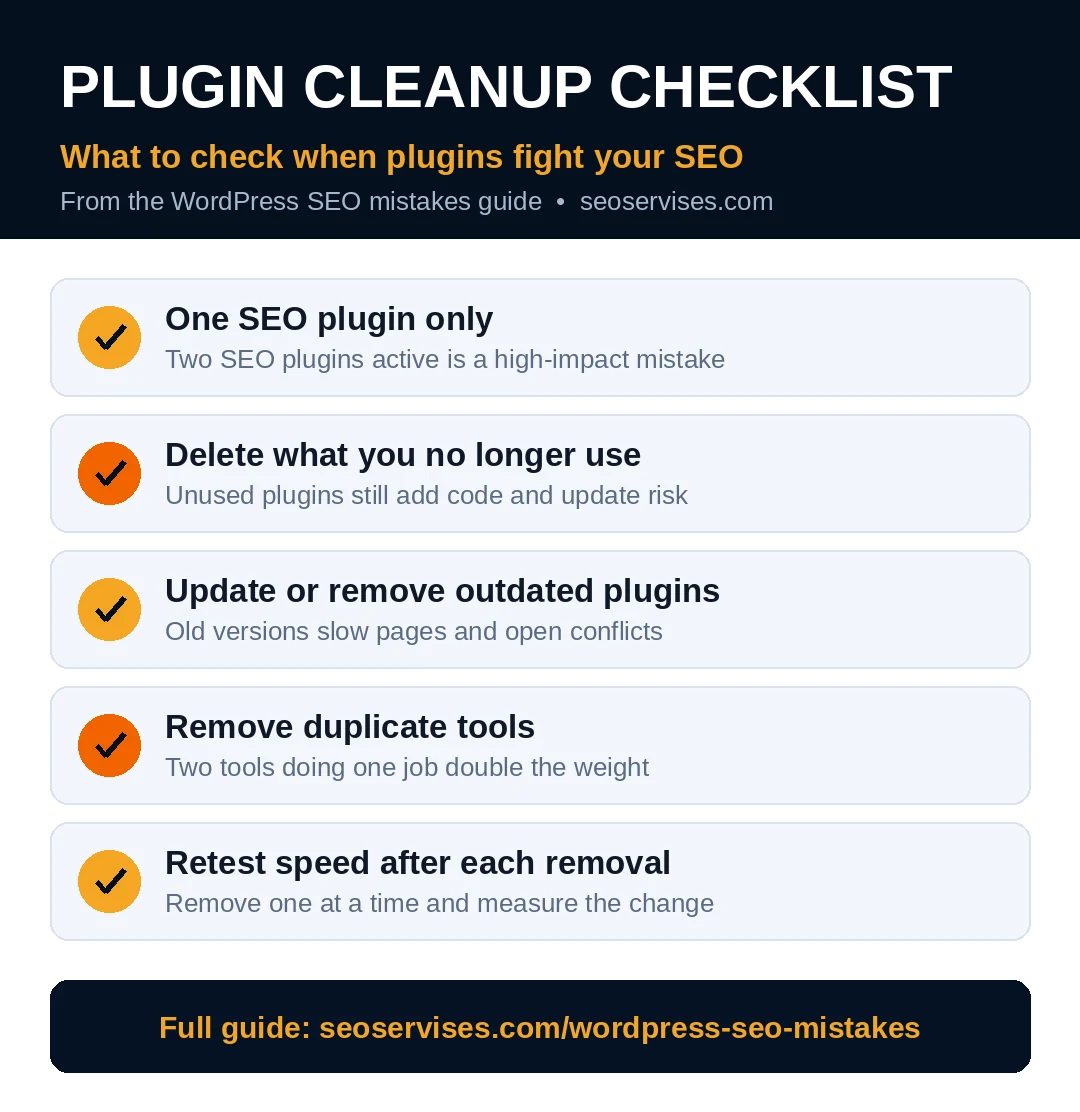
Table 1: Fast Fixes by Impact
Start at the top of this table. Early rows protect every page on your site.
| Mistake | Impact | Fix time |
|---|---|---|
| Search engines discouraged | Critical | 2 minutes |
| Two SEO plugins active | High | 20 minutes |
| Duplicate titles everywhere | High | 10 minutes per page |
| One keyword, many pages | High | 1 hour per topic |
| Huge uncompressed images | High | 5 minutes per batch |
| Broken internal links | Medium | 30 minutes monthly |
Mistake 11: Skipping Internal Links
Posts with no internal links become orphan pages. Google finds them late and ranks them weakly. Visitors also miss your best related content.
Link every new post to its parent service page. Add two or three links to related posts. Update older posts to link forward too. See our beginner walkthrough in WordPress SEO for beginners for linking basics.
How do I know if my WordPress SEO is bad?
Check Search Console for falling clicks and coverage errors. Search your brand name and note your position. Test your homepage speed on a phone connection. Look for duplicate titles across key pages. Several red flags together confirm real problems exist.
Mistake 12: Changing URLs Without Redirects
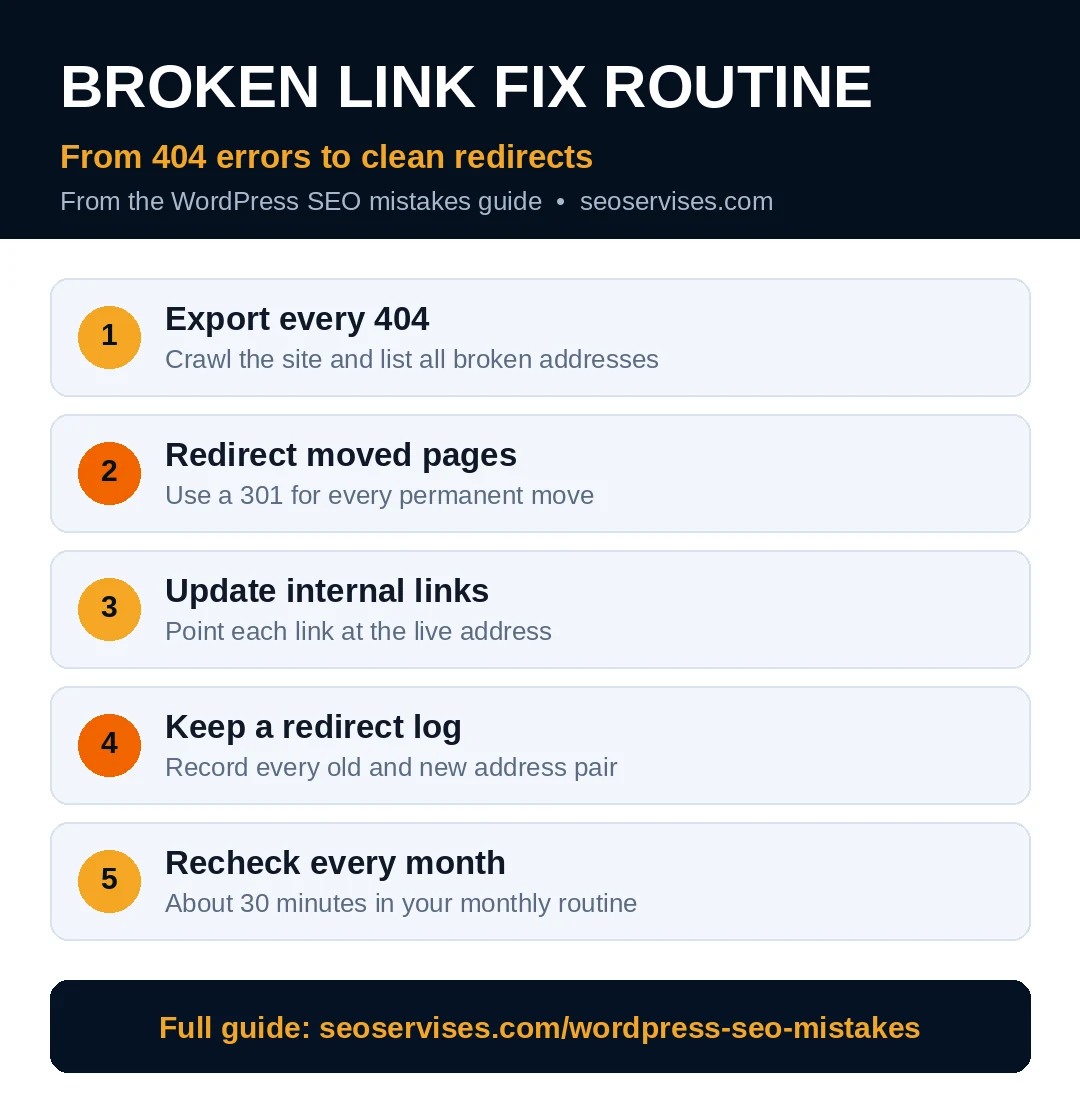
Every URL change without a redirect creates a dead end. Bookmarks, links, and rankings all hit a 404 page. That lost value never returns on its own.
Plan redirects before you change any slug. Use your SEO plugin redirect manager for each move. Test every old address after the change. Keep a simple log of all redirect pairs.
Mistake 13: Neglecting Site Speed
Slow pages lose visitors before content even loads. Google measures real speed through Core Web Vitals. Bloated themes and plugins usually cause the drag.
Enable page caching as your first speed step. Remove plugins you no longer use weekly. Compress images and use a lightweight theme. Retest with PageSpeed Insights after each fix.
Mistake 14: Skipping Schema Markup
Without schema, your results look plain beside rich rivals. Stars, prices, and FAQs win extra clicks daily. Many owners skip schema fearing complex code.
Your SEO plugin adds basic schema without coding. Set Article schema as the default for posts. Add FAQ schema where questions appear visibly. Validate output with the Rich Results Test tool.
Can too many plugins hurt WordPress SEO?
Yes, extra plugins can slow pages and create conflicts. Each plugin adds code, queries, and update risk. Quality matters more than the raw plugin count. One bloated plugin hurts more than five lean ones. Audit plugins quarterly and delete anything unused.
Mistake 15: Never Updating Old Content
Old posts quietly lose rankings as facts age. Competitors refresh their guides and pass you slowly. Outdated prices and steps also erode reader trust.
Review your top pages every quarter in Search Console. Refresh the weakest pages with better, current detail. Update dates, examples, and internal links together. Remove advice that tools or Google made obsolete.
Table 2: Monthly Error-Check Routine
| Check | Tool | Time |
|---|---|---|
| Coverage and indexing errors | Search Console | 15 minutes |
| Broken links scan | Plugin or checker | 20 minutes |
| Speed on top three pages | PageSpeed Insights | 15 minutes |
| Duplicate title review | SEO plugin bulk editor | 20 minutes |
A Real Example: A Bakery Site in Florida
A small bakery in Tampa had a pretty website. Its owner blogged recipes every week for a year. Traffic stayed flat despite all that steady effort. She assumed Google simply disliked new small sites.
An audit found three problems in ten minutes. The Reading setting still discouraged search engines entirely. Her two best posts targeted the same keyword phrase. Twelve recipe photos each weighed over three megabytes.
Fixing the checkbox restored indexing within two weeks. Merging the twin posts created one strong guide. Compressing the photos cut load time by half. Three months later, organic visits had nearly doubled.
Her story shows why order matters in repairs. Content effort meant nothing while indexing stayed blocked. One settings fix freed a year of good work. Always check blockers before blaming your content quality.
How to Prioritize Your Fixes
Fix indexing blockers before anything else today. A hidden site gains nothing from better content. Then repair titles, keyword conflicts, and broken links. Finish with speed, schema, and content refresh work.
Work in small batches and retest after each batch. Ten changes at once hide which fix helped. Steady weekly progress beats one frantic overhaul.
How often should I audit my WordPress site for SEO errors?
Run a light check every month without fail. Do a deep review every quarter each year. Audit immediately after any redesign or migration too. Small sites can finish light checks in one hour. Catching errors early prevents long ranking recoveries later.
Fix the Errors, Keep the Rankings
Every site carries a few of these errors today. The gap is how fast owners find and fix them. Your rankings reward steady, careful maintenance work.
Use this list as your monthly repair checklist. Tick off each fix and note the date. Contact us if errors keep returning after fixes.
Frequently Asked Questions
What is the biggest WordPress SEO mistake?
Leaving search engines discouraged is the most damaging error. That single setting can remove your whole site from Google. Duplicate content and keyword conflicts follow close behind. Slow mobile pages hurt almost every site somewhat. Check the blockers first before any other work.
Does WordPress automatically handle SEO well?
WordPress provides a solid, search-friendly base by default. It creates clean structure, permalinks, and editable titles. It does not write your meta data or strategy. You still need one plugin and consistent habits. The platform enables SEO but never replaces it.
Can I fix these WordPress errors without a plugin?
You can fix many errors by hand, but slowly. Settings, content, and links need no plugin at all. Meta fields, sitemaps, and schema take coding without one. Most owners save hours with one good plugin. Choose the route your skills support honestly.
How long do fixes take to improve rankings?
Indexing fixes can show results within days sometimes. Title and content fixes usually need several weeks. Speed gains help once Google recrawls your pages. Competitive topics may need months of steady work. Track progress monthly in Search Console for truth.
Should I hire help or fix mistakes myself?
Fix simple settings and content errors yourself first. Hire help for migrations, speed, and stubborn technical errors. Your time value decides where that line sits. A short expert audit often reveals hidden issues fast. Many owners pair DIY upkeep with quarterly expert reviews.






2 Comments