
BLOG • WORDPRESS SEO
WordPress SEO for Beginners: A Start-to-Finish Guide
You launched your WordPress site last week. The pages look good on your phone. Yet Google shows nothing when you search.

That gap feels scary for a new owner. It is also normal at this stage. Most new sites skip a few small setup steps. This guide walks you through one calm first week. You will fix one thing per day. No coding skills are needed at all.
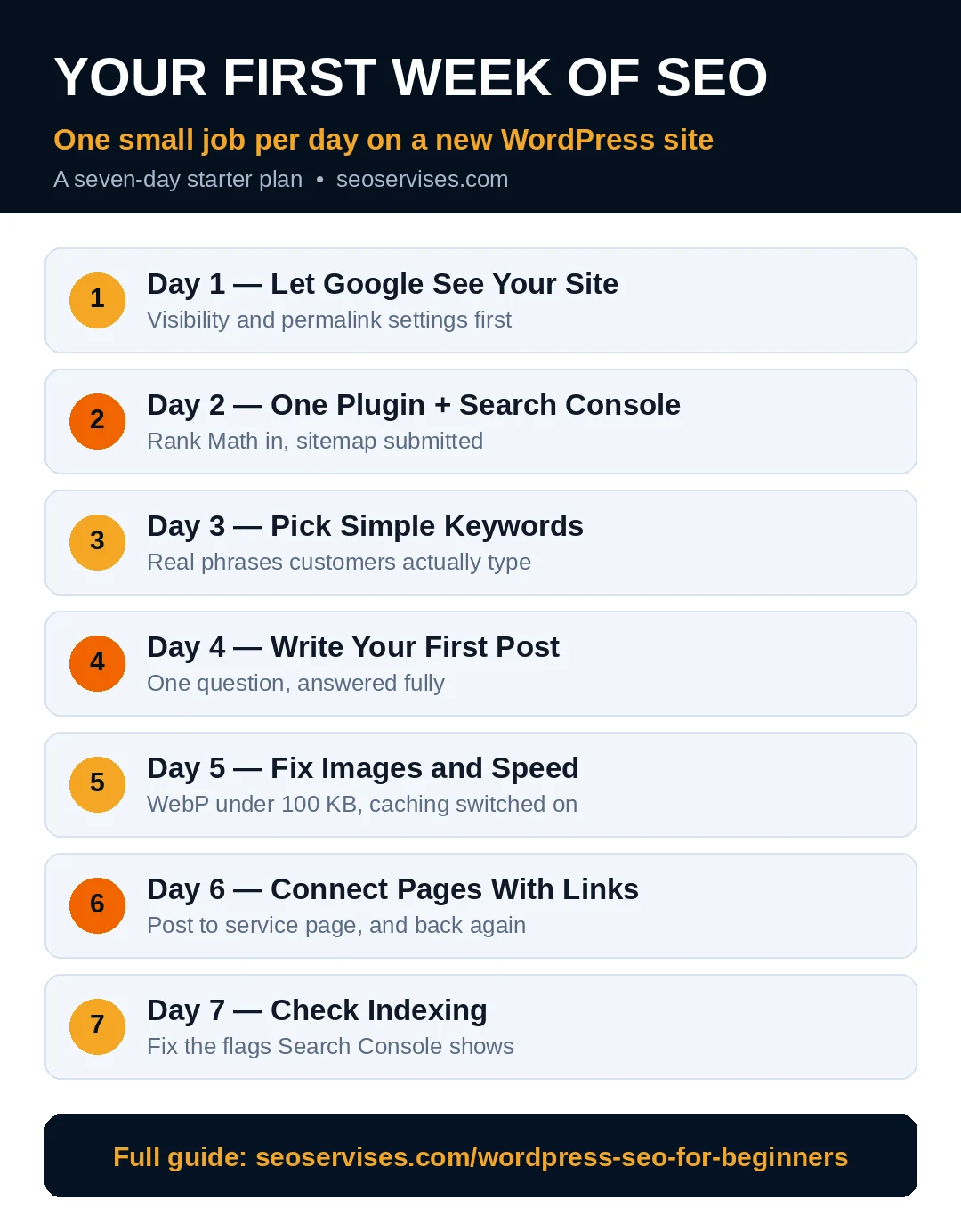
Quick answer: Treat wordpress seo for beginners as a seven-day setup routine. Day one covers visibility and clean links. Day two adds one SEO plugin and Search Console. Later days cover keywords, writing, images, and links. One hour per day builds the full base.
Your first week at a glance:
| Day | Main job | Time needed |
|---|---|---|
| Day 1 | Visibility, permalinks, and HTTPS | 30 minutes |
| Day 2 | SEO plugin and Search Console | 45 minutes |
| Day 3 | Pick simple keywords | 40 minutes |
| Day 4 | Write your first post | 60 minutes |
| Day 5 | Images and basic speed | 40 minutes |
| Day 6 | Internal links between pages | 30 minutes |
| Day 7 | Check indexing and fix flags | 30 minutes |
Day 1: Let Google See Your Site
Start with permission, not content. Google cannot rank pages it cannot visit. Three settings control that access on WordPress.
First, open Settings, then Reading, in your dashboard. Find the search engine visibility checkbox near the bottom. Make sure that box stays unticked. A ticked box tells Google to stay away. Many developers tick it during the build phase. They sometimes forget to untick it at launch.
Second, open Settings, then Permalinks. Choose the “Post name” option and save. Your links then read like plain topics. A plumber in Austin gets /emergency-plumbing-austin/ as a link. That beats a string of numbers every time. Visitors trust clean links more as well.
Third, check your address bar for a padlock. The padlock means HTTPS protects your site. Most hosts give a free SSL certificate. Turn it on inside your hosting panel. Google treats a secure site as basic trust.
What are the best permalink settings for a new WordPress site?
Pick “Post name” for almost every small business site. It keeps links short, clear, and keyword friendly. Avoid dates inside links for service pages. Dates make helpful pages look old fast. Change this setting once, early, and leave it. Later changes need redirects for every page.
A full reference list lives in our complete WordPress SEO checklist. Keep it open while you work this week. It confirms each setting after you finish. Use this guide for the order of work.
Day 2: Add One Plugin and One Google Tool
WordPress alone lacks a few key SEO controls. One good plugin fills those gaps neatly. Pick one plugin and learn it well.
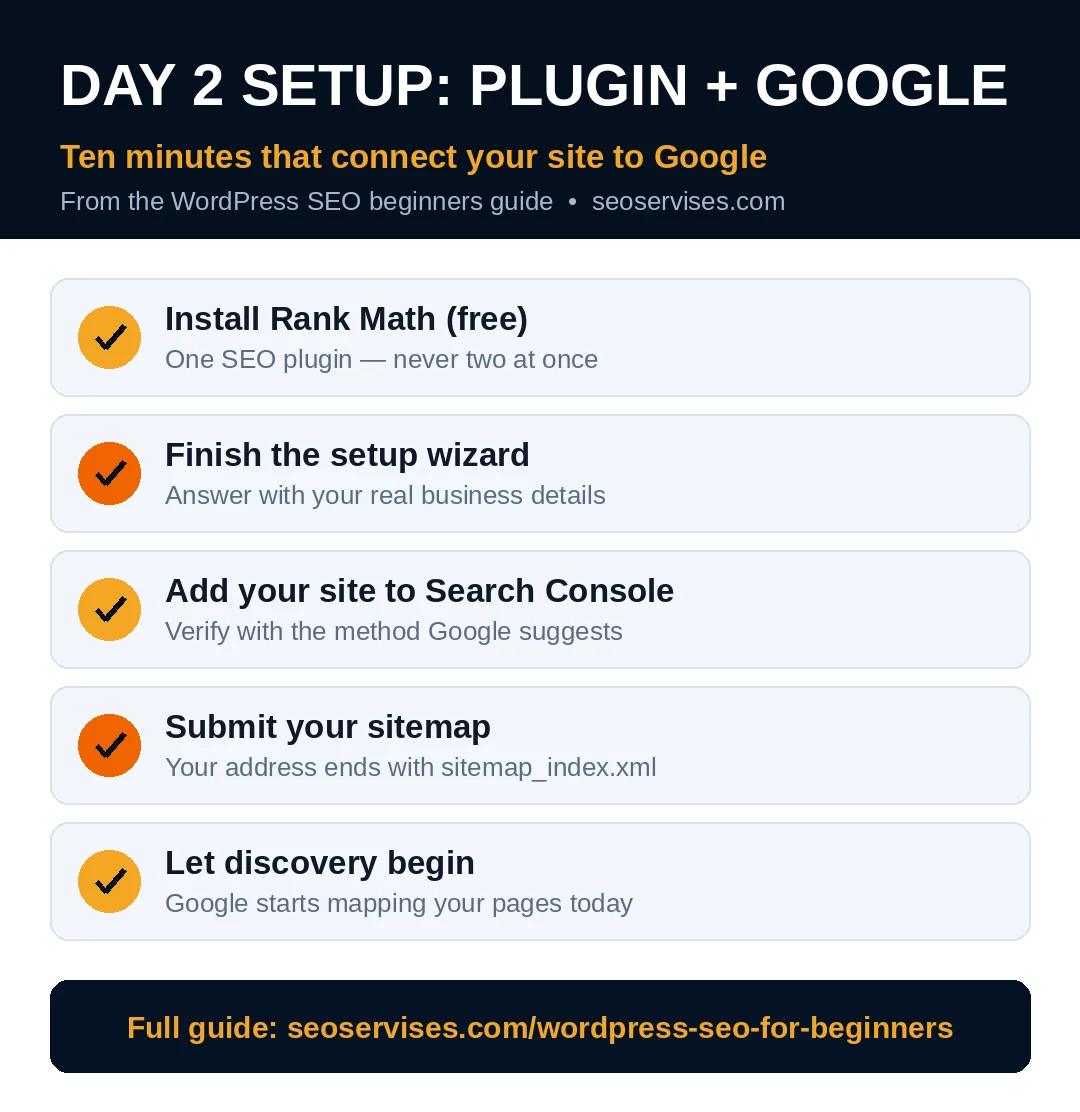
Install Rank Math from WordPress.org for free. It adds meta fields, a sitemap, and schema. The setup wizard takes about ten minutes. Answer each question with your real business details. Those details feed your search listings later.
Never install a second SEO plugin beside it. Two plugins fight over titles and sitemaps. Pick one, finish its setup, and move on.
Next, open Google Search Console in your browser. Add your site as a new property. Verify it with the method Google suggests. Then submit your sitemap under the Sitemaps tab. Your sitemap address ends with sitemap_index.xml in Rank Math. Google now has a map of your pages.
What is the first step to start WordPress SEO for a new blog?
Fix visibility and permalinks before writing anything new. Those two settings decide whether posts can rank. Then install one SEO plugin right away. Connect Search Console on the same day. That order saves beginners weeks of confusion. Content written before setup often needs rework.
Day 3: Pick Simple Keywords People Type
Keywords are the exact words customers type. Your pages should match those real phrases. Guessing wastes weeks for new sites.
Start with your services and your city. A bakery in Denver sells custom wedding cakes. Real searches sound like “wedding cakes denver” instead. Type your service into Google search slowly. Read the suggestions Google drops down. Those suggestions come from real user searches.
Open the “People Also Ask” boxes too. Each question shows a topic customers want answered. Write down ten phrases that fit your work. Keep the list beside your desk.
Give each page one main phrase only. Your homepage takes your broadest service phrase. Each service page takes its own specific phrase. Blog posts answer one clear question each. Two pages chasing one phrase split your strength. Google then ranks neither page well.
How do I pick keywords as a beginner?
Start with phrases your customers say out loud. Ask recent buyers how they found you. Check Google suggestions for each service phrase. Pick phrases with clear buying intent first. Skip broad one-word terms for now. A new site wins specific searches first. Broad terms can come in month six.
Day 4: Write Your First Post the Right Way
Today you publish one helpful post. Pick one question from your day-three list. Answer it fully for a real customer.
Write a title that states the benefit clearly. Put your main phrase near the title start. Keep the title under sixty characters total. Then write a short meta description in Rank Math. Give readers one clear reason to click.
Use your title as the only H1 heading. Break the post into short H2 sections. Keep paragraphs short and easy to scan. Write like you talk to a customer. Short sentences help busy readers a lot.
Add your main phrase in the first paragraph. Then forget the phrase and write naturally. Forced repeats sound stiff and hurt trust. One clear answer beats ten keyword mentions.
Do I need to know coding to do SEO on WordPress?
No, beginners handle almost every task without code. Plugins manage sitemaps, schema, and meta fields. The theme controls design with visual settings. Menu screens cover links, titles, and descriptions. Coding only helps with rare custom jobs. Most small sites never need those jobs.
Day 5: Fix Images and Basic Speed
Large photos slow new sites down fast. One phone photo can weigh five megabytes. That single file can stall your homepage.
Shrink each photo to its display size first. Convert it to WebP format before uploading. Keep each file under 100 KB total. Free online tools handle both steps quickly.
Write plain alt text for every photo. Describe what the photo actually shows. A cake photo gets “three-tier wedding cake with roses.” Skip phrases like “best cake image ever.” Alt text helps screen readers and Google alike.
Turn on caching in your hosting panel. Many hosts include one-click caching for WordPress. Caching serves saved copies to repeat visitors. Pages then load with far less work.
Table 2: Free Tools for Your First Month
| Job | Free tool | What it tells you |
|---|---|---|
| Check indexing | Google Search Console | Which pages Google stored |
| Check speed | PageSpeed Insights | Mobile scores and fixes |
| Find keywords | Google search suggestions | Real phrases people type |
| Track visitors | Google Analytics | Pages people visit most |
| Test rich results | Rich Results Test | Schema errors to fix |
Day 6: Connect Your Pages With Links
Links tell Google how your pages relate. They also guide visitors toward your services. A new site needs simple, honest links.
Link your new post to its service page. Use words that describe that service page. Link your service page back to the post. That two-way pattern builds topical strength fast.
Avoid anchors like “click here” for key links. They tell Google nothing about the destination. Descriptive anchors help readers decide before clicking. Keep each post near three internal links. More links rarely help a short post.
Watch for common traps as your site grows. Our guide to common WordPress SEO mistakes lists them plainly. Read it before your second month starts. It saves you from quiet ranking losses.

Day 7: Check Indexing and Fix Flags
Open Search Console and click Pages today. The report lists indexed and excluded pages. A brand-new site often shows few indexed pages. That count grows over the next weeks.
Test your homepage with URL Inspection inside Search Console. The tool shows whether Google can fetch it. Fix any error it reports right away. Then request indexing for that one page.
Why is my WordPress site not showing up on Google?
New sites need days or weeks for discovery. A ticked visibility box can block everything. A missing sitemap slows discovery as well. Thin pages may be crawled but not stored. Check the box, submit the sitemap, and wait. Then add links from your homepage to key pages.
Small Habits That Protect Your Progress
Tiny habits keep your week-one work safe. Back up your site before every plugin update. One bad update can break layouts overnight. Most hosts include simple backup tools for free.
Rename every photo before you upload it. Future you will thank present you later. Descriptive names make old photos easy to find. They also give Google helpful context clues.
Answer one customer question in every post. Real questions come from calls and emails daily. Keep a running list inside your phone notes. That list becomes your next month of topics. You will never stare at a blank page.
Check your contact page once a month. Forms break silently after updates sometimes. Send yourself one test message each month. A broken form costs real leads quietly. This two-minute test protects your hardest work.
Skip buying links or traffic packages completely. Cheap offers promise fast rankings to new owners. Those links often bring penalties instead of growth. Honest content and links from partners work better. Local suppliers and associations make great first partners.
What Week Two Looks Like
Week two repeats the same calm pattern. Publish one more helpful post each week. Update one older page with better detail. Check Search Console once every Monday morning.
Growth feels slow in the first month. Google tests new pages before trusting them. Steady, useful posts earn that trust over time. Most small sites see early movement by month three. Your routine matters more than any trick.
Some owners enjoy this weekly routine. Others would rather serve customers all day. Our team runs this full setup for busy owners through friendly help for WordPress site owners. You choose the path that fits your schedule.
Ready for a Guided Start?
You now hold a full first-week plan. Work it one day at a time. Small correct steps compound into real traffic.
Want a second pair of eyes instead? Contact us for a free first review. We will check your setup in plain words. Google also offers a helpful starter guide in Search Central for extra reading.
Frequently Asked Questions
What is the difference between WordPress.com and WordPress.org for SEO?
WordPress.org gives you full control over your site. You pick hosting, plugins, and every setting. WordPress.com hosts the site for you instead. Its lower plans limit plugins and controls. Most growing businesses prefer the.org route. Control helps you fix SEO issues fast.
Is WordPress good for SEO compared to other platforms?
Yes, WordPress gives owners strong SEO control. You manage links, titles, sitemaps, and schema freely. Plugins add tools that other platforms charge for. No platform ranks a site by itself though. Your content and setup decide the outcome.
How long does it take to rank on Google with a new WordPress site?
Most new sites see early movement within three months. Easier local phrases can move in weeks. Hard national phrases may need six months. Your pace depends on competition and consistency. Weekly useful posts shorten the wait most.
Should I use Yoast SEO or Rank Math?
Both plugins cover the core jobs well. Rank Math packs more features into its free version. Yoast offers a clean, guided feel for beginners. Pick one and configure it fully. Switching later costs time and risks errors.
How often should I check my SEO performance?
Check Search Console once a week at first. Look for errors and new search phrases. Review rankings once a month, not daily. Daily checks create stress without new data. Monthly reviews show real trends clearly.