
BLOG • LOCAL SEO
How to Optimize Your Google Business Profile Step by Step
Your profile often speaks before your website does. Shoppers see your stars, photos, and hours first. They decide to call you from that panel. A half-finished profile quietly sends them elsewhere.

This guide walks through each field in order. You will fix categories, services, photos, and reviews. You will also build a simple weekly routine. The same routine powers our local visibility services for small firms.
Quick answer: Good google business profile optimization starts with verification. Then set one specific primary category. Complete services, hours, photos, and attributes next. Earn steady reviews and reply to each one. Most profiles need two focused hours for setup.
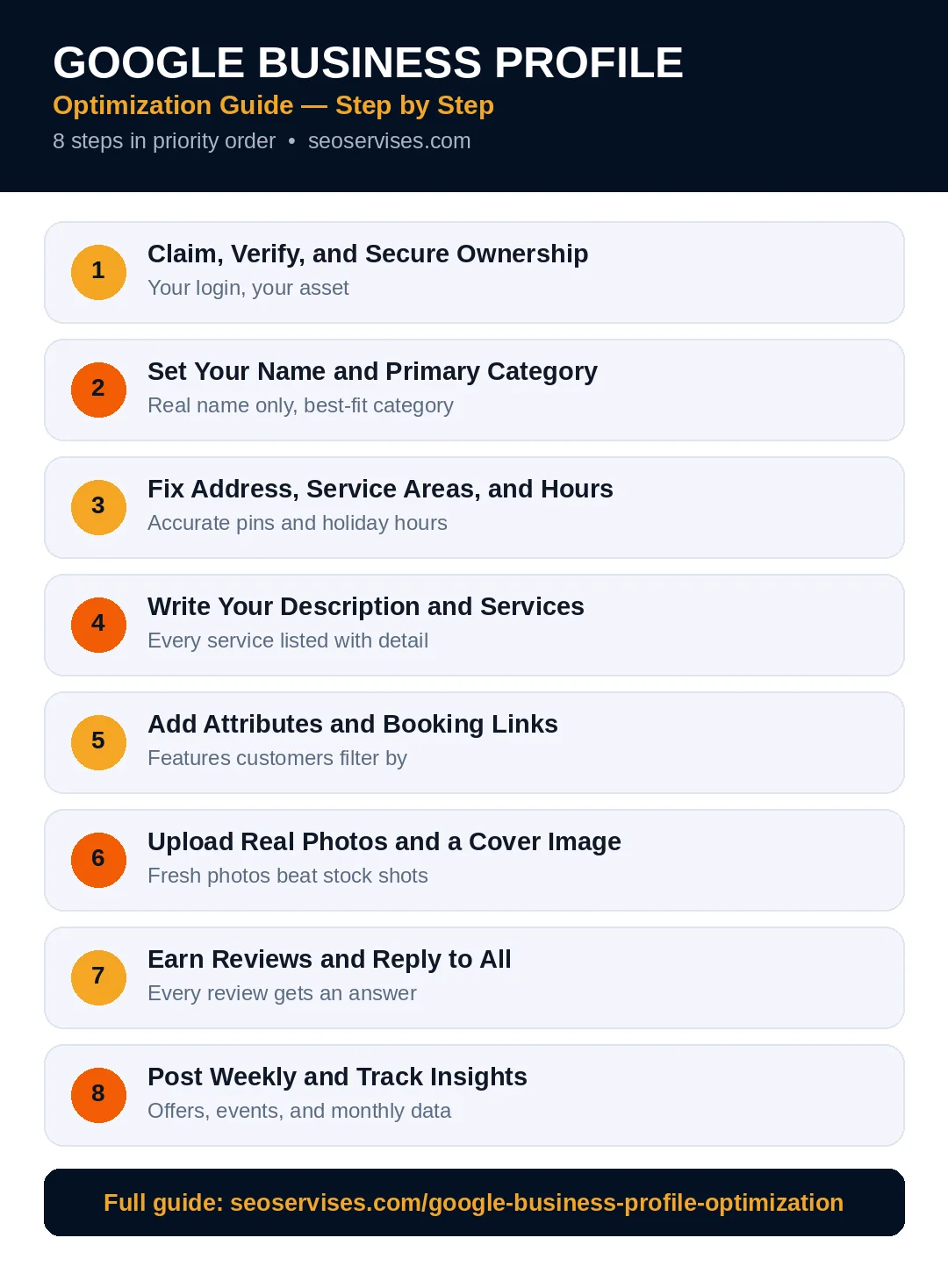
The eight steps at a glance:
- Claim, verify, and secure ownership
- Set your name and primary category
- Fix address, service areas, and hours
- Write your description and services
- Add attributes and booking links
- Upload real photos and a cover image
- Earn reviews and reply to all
- Post weekly and track insights
Table 1: Field-by-Field Priority List
Fix fields in this order for the fastest gains. The top rows shape ranking and trust most.
| Profile field | Why it matters | Fix time |
|---|---|---|
| Verification status | Controls public visibility | 30 minutes |
| Primary category | Drives search matching | 15 minutes |
| Business name | Trust and policy safety | 5 minutes |
| Hours and holiday hours | Stops bad visits | 10 minutes |
| Services list | Matches detailed searches | 30 minutes |
| Description | Explains your offer clearly | 20 minutes |
| Photos | Lifts clicks and calls | 30 minutes |
| Review replies | Builds shopper trust | 10 minutes daily |
| Weekly posts | Shows an active business | 15 minutes weekly |
Step 1: Claim, Verify, and Secure Ownership
Start at google.com/business with a company account. Never build the profile on a personal account. Staff changes should never cost you ownership. The owner account should belong to the business.
Search for your business before creating anything. Google may already list you from public data. Claim the existing listing to keep its history. A fresh profile would split reviews and trust.
Complete verification with the method Google assigns. Video review is now common for many trades. Show signage, tools, vehicles, and business documents on video. Google outlines each method in its Business Profile Help center.
Add one trusted manager after verification. Managers can edit details and reply to reviews. They cannot remove owners or delete the profile. That split keeps your listing safe long term.
Who should own my Google Business Profile?
The business owner should hold primary ownership. Use a company Google account, not personal mail. Add staff and agencies as managers only. Managers handle daily edits without ownership risk. Remove old managers during every staff change.
Step 2: Set Your Name and Primary Category
Use your real-world business name only. Match the name on your signs and invoices. Skip added keywords, cities, and taglines. Google can suspend profiles for stuffed names.
Choose the most specific primary category available. “Dentist” beats “Clinic” for a dental practice. “Plumber” beats “Contractor” for a plumbing firm. This single field shapes your search matching most.
Add secondary categories for real extra services. A dentist may add “Teeth whitening service” too. Each category must reflect actual paid work. Delete categories you added by guessing years ago.
Check rival profiles before you lock categories. Open the top map results for your service. Their primary categories reveal the local pattern. Copy the pattern only when it truly fits.
Can I change my primary category later?
Yes, you can edit your category anytime. Google may review the change before publishing it. Rankings can shift for a few days afterward. Change it only when your main service changes. Frequent swaps confuse Google and shoppers alike.
Step 3: Fix Address, Service Areas, and Hours
Storefronts should show their real street address. Customers must be able to visit that address. Virtual offices and post office boxes break policy. Google removes profiles built on fake locations.
Service-area businesses should hide the address. List the cities or zip codes you serve. You can add up to twenty areas. Keep areas within a realistic driving range. A huge service area rarely helps rankings.
Set your pin at your exact entrance. Drag the marker if Google placed it wrong. A wrong pin sends drivers to alleys. It also creates angry calls and reviews.
Enter regular hours you truly keep. Add holiday and special hours early. Shoppers trust listings that stay current. Google even boosts open businesses during searches. Wrong hours remain a top complaint source.

Step 4: Write Your Description and Services
Your description allows up to 750 characters. Lead with your main service and area. Name your ideal customer in plain words. Add one proof point, like years in business. Close with a simple next step.
Avoid hype words and keyword lists here. Shoppers skim this text in seconds. Clear beats clever at this size. Write like you speak to a caller.
Build your full services list next. Add each service under its matching category. Write one or two lines per service. Note who the service suits best. Add prices when your pricing stays stable.
Services help you match long, specific searches. “Emergency water heater repair” beats plain “plumbing” intent. Each listed service gives Google another match point. It also pre-sells shoppers before they call.
How long should my business description be?
Use most of the 750 character limit. Aim for roughly 600 to 740 characters. Cover service, area, customer, and proof. Skip links, phone numbers, and sales claims. Google rejects descriptions with contact details inside.
Step 5: Add Attributes and Booking Links
Attributes describe facts shoppers filter by. Examples include wheelchair access and free parking. Others note women-led or veteran-led ownership. Tick every attribute that is truly accurate. Remove any attribute that no longer applies.
Add a booking or order link if you use one. Point it to your real booking page. Test the link on a phone monthly. Broken booking links cost direct revenue.
Add menu or product links where relevant. Restaurants should link a current menu page. Retailers can add key product groups. Keep prices aligned with your website prices. Mismatched prices erode trust very fast.
Turn on messaging only if you reply fast. Slow replies frustrate shoppers and hurt trust. Set clear hours for message responses. An unanswered chat is worse than none.
Step 6: Upload Real Photos and a Cover Image
Photos turn a plain listing into proof. Shoppers compare your images against rival images. Real photos beat stock photos every time. Google data links photos with more actions. Profiles with photos earn more direction requests.
Start with ten strong photos minimum. Show your exterior, interior, team, and work. Add your logo and a clear cover photo. Shoot in daylight with a clean lens. Horizontal shots display best on the profile.
Build a simple photo habit after launch. Save three photos from every finished job. Upload the best ones each week. Fresh photos signal an active, trading business. They also show seasonal work and new staff.
Remove blurry, dark, or outdated images. Old signage and former staff confuse shoppers. Audit the full gallery every quarter. Keep the gallery honest and current.

Step 7: Earn Reviews and Reply to All
Reviews feed the prominence part of local ranking. Google names relevance, distance, and prominence as factors. Reviews are the clearest prominence signal you control. Count, rating, and recency all play roles.
Copy your short review link from the dashboard. Share it by text, email, and invoice. Print a QR code for your counter. Ask every customer the same simple way. Never pay, reward, or filter reviewers.
Reply to every review, good or bad. Thank happy customers with a personal line. Answer complaints calmly and offer a call. Short replies read better than long defenses. Your replies sell to future readers most.
This post sits inside a wider local system. Start with the full local checklist for small business owners if you lack one. It orders profile work among citations and pages.
How many photos should my profile have?
Start with at least ten real photos. Twenty to thirty photos suit most firms well. Cover exterior, interior, team, and finished work. Add two or three fresh photos monthly. Quality and recency beat a huge stale gallery.
Step 8: Post Weekly and Track Insights
Google posts keep your profile visibly active. Share offers, events, and finished projects there. Each post needs one clear call action. Posts suit news, not evergreen service claims.
Check insights once a month at minimum. Track calls, clicks, and direction requests. Note which searches surface your profile most. Rising branded searches signal growing local awareness. Falling calls signal a content or review gap.
Watch for suggested edits from Google and users. Anyone can suggest a change to your listing. Wrong edits can go live without warning. Review your live profile every Monday morning. Fix wrong hours, photos, or categories fast.
Guard against duplicate listings during this routine. Search your name, phone, and old address monthly. Report duplicates through the profile dashboard tools. Duplicates split reviews and weaken both listings. If your listing vanished entirely, read our nine fixes for missing map listings next. It diagnoses suspension, filters, and verification failures.
Table 2: Weekly Profile Routine
Small habits keep a strong profile strong. This routine takes under one hour each week.
| Day | Task | Time |
|---|---|---|
| Monday | Check live profile and edits | 10 minutes |
| Tuesday | Upload fresh job photos | 10 minutes |
| Wednesday | Publish one Google post | 15 minutes |
| Thursday | Reply to new reviews | 10 minutes |
| Friday | Check insights and leads | 10 minutes |
Mistakes That Trigger Suspension
Some profile edits break Google policy fast. A stuffed business name is the classic trigger. A fake or borrowed address comes second. Virtual offices also draw quick suspensions.
Buying reviews risks profile penalties too. Google removes fake reviews in large batches. The FTC also bans paid fake reviews nationwide. One shortcut can erase years of honest work.
Never create a second profile to dodge problems. Fix the original profile through official appeals. Keep documents ready, like licenses and utility bills. Proof speeds every reinstatement decision at Google.
What Good Results Look Like
A tuned profile shows steady, boring growth. Calls rise slowly across three to six months. Direction requests climb as photos improve. Review counts grow by a few each month.
Do not judge success by one ranking check. Map results shift with location and time. Judge by calls, bookings, and revenue instead. Those numbers pay your bills, not screenshots.
Compare quarters, not weeks, for real trends. Seasonal trades swing hard across the year. A fair comparison uses the same season. Keep notes on offers and local events too.
Ready to Turn Your Profile Into Leads?
Two focused hours can transform a weak listing. The weekly routine then keeps it working hard. Many owners fix setup but skip the routine.
Our team runs this full system for busy owners. We handle categories, posts, reviews, and monthly checks. Contact us for a free profile review today.
Frequently Asked Questions
Is Google Business Profile free to use?
Yes, the profile is fully free. Google charges nothing for setup or edits. You only invest time or agency help. Paid ads are separate and fully optional. Every business can claim a listing today.
How long do profile changes take to appear?
Most edits appear within one to three days. Name and category changes may take longer. Google reviews sensitive edits by hand sometimes. Check the live listing, not just the dashboard. Report stuck edits after one full week.
Can I optimize a profile without a storefront?
Yes, service-area businesses qualify for profiles too. Hide your address and list service areas. You still need a real, staffed base. Verification proves you serve those areas. Many trades rank well with this setup.
Do Google posts help my ranking?
Posts mainly drive clicks and customer actions. They show your business is open and active. Google does not list posts as ranking factors. Fresh posts still support calls and bookings. Treat them as conversion tools, not rank tricks.
What should I do if my profile gets suspended?
Stop editing and gather proof documents first. Use licenses, bills, and storefront photos as proof. File the official reinstatement appeal inside your dashboard. Never open a replacement profile during appeal. Most clear cases resolve within two weeks.
How often should I update my profile?
Check your profile every week without fail. Update hours before every holiday period. Add photos and posts on a weekly rhythm. Review categories and services each quarter. Small steady updates beat yearly overhauls.






2 Comments