
BLOG • WORDPRESS SEO
How to Speed Up a WordPress Website for SEO
A slow WordPress site loses buyers before your headline loads. Phones on weak signals feel every extra second. Google also measures that slowness and ranks accordingly.

This guide shows how to speed up wordpress website performance step by step. You will fix hosting, caching, images, and code in order. Each step includes a simple way to verify gains. Speed sits inside our wider technical SEO services for deeper audits.
Quick answer: Start with fast hosting, page caching, and image compression. Those three fixes deliver most speed gains for small sites. Then add a CDN, clean your plugins, and cut heavy scripts. Test with PageSpeed Insights after every single change.
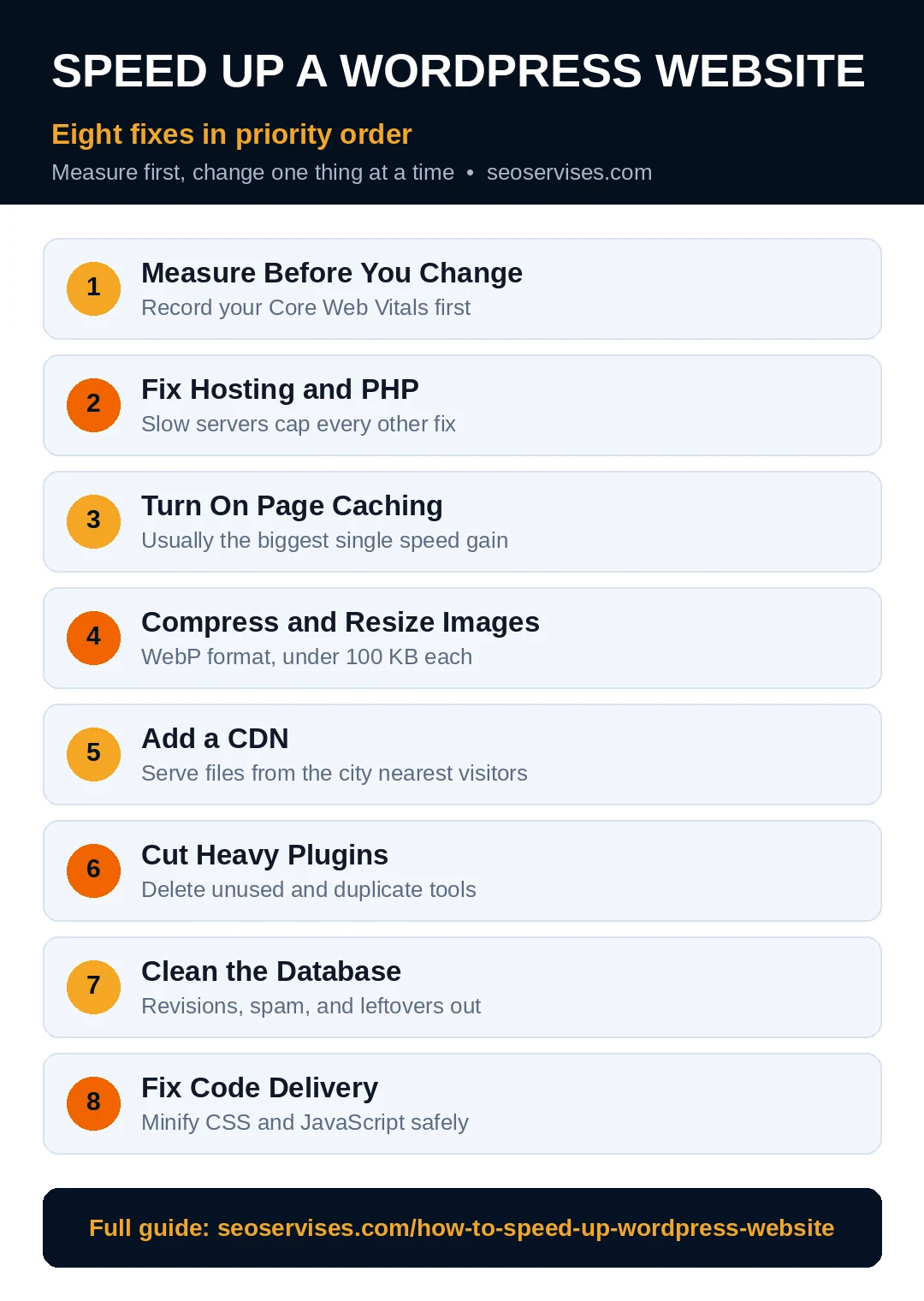
The fix order in this guide:
- Measure your baseline scores first
- Fix hosting and PHP version issues
- Turn on page caching properly
- Compress and resize every image
- Add a CDN for distant visitors
- Remove heavy plugins and scripts
- Clean the database and code delivery
Step 1: Measure Before You Change Anything
Never guess where your site loses time. Run PageSpeed Insights on your homepage first. Test your top service page right after that. Save screenshots of both scores for comparison.
Note your LCP, INP, and CLS scores carefully. LCP measures how fast main content appears. INP measures how fast pages respond to taps. CLS measures how much layout shifts while loading.
Google publishes target values on web.dev Core Web Vitals guidance. Aim for LCP under two point five seconds. Aim for INP under two hundred milliseconds. Aim for CLS under zero point one.
What is a good page load time for SEO?
Aim for main content visible within two point five seconds. That target matches the good LCP threshold exactly. Full page load can take slightly longer safely. Mobile scores matter more than desktop scores today. Test on a mid-range phone profile every time.
Step 2: Fix Hosting and PHP First
Cheap shared hosting caps every other speed fix. Crowded servers respond slowly before WordPress even runs. No plugin can rescue a struggling server fully.
Check your time to first byte in test tools. Values above six hundred milliseconds signal hosting trouble. Managed WordPress hosts usually respond far faster. They also include caching and updates by default.
Update your PHP version from your host panel. Modern PHP versions process WordPress code much faster. Back up fully before any version change. Test forms, checkout, and logins right after updating.
Table 1: Core Web Vitals Targets and Tools
| Metric | Good target | What it measures |
|---|---|---|
| LCP | Under 2.5 seconds | Main content loading speed |
| INP | Under 200 milliseconds | Response to taps and clicks |
| CLS | Under 0.1 | Layout stability while loading |
| TTFB | Under 600 milliseconds | Server response speed |
Step 3: Turn On Page Caching
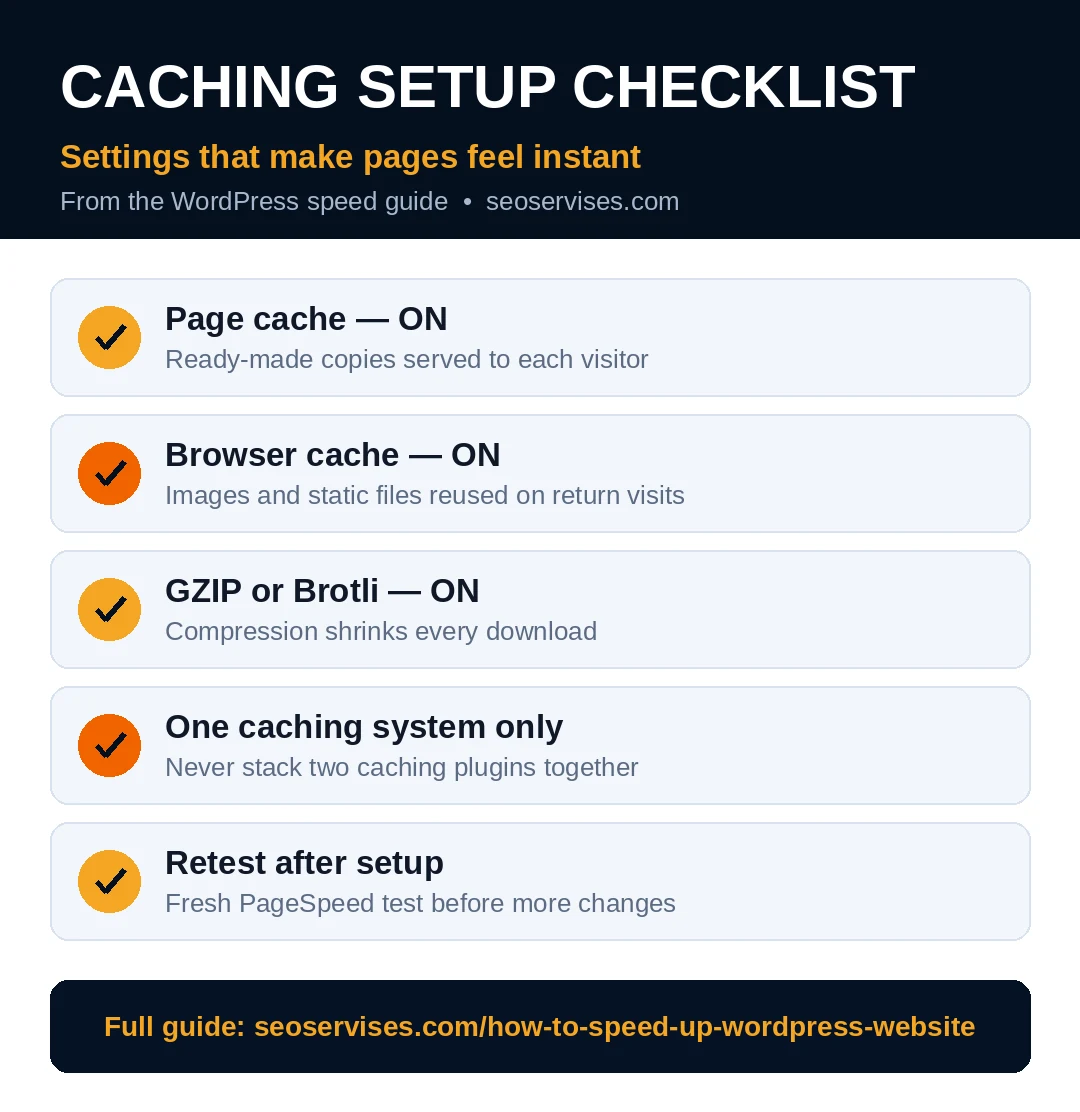
Caching stores ready-made copies of your pages. The server stops rebuilding each page per visitor. Repeat visits then feel almost instant for buyers.
Install one caching plugin and configure it fully. Popular options include WP Rocket and LiteSpeed Cache. Many hosts include built-in caching already instead. Never stack two caching systems at once.
Enable browser caching for images and static files. Returning visitors then reuse files from their device. Also enable GZIP or Brotli compression if offered. Retest speed after caching before adding more changes.
Does caching really speed up WordPress?
Yes, caching usually gives the biggest single gain. Dynamic page builds take far longer than static copies. Busy pages benefit most from proper page caching. Gains often cut load times by half or more. Verify with a fresh PageSpeed test after setup.
Step 4: Compress and Resize Images
Images cause most slow WordPress pages today. Owners upload full camera photos straight into posts. Browsers then download files far larger than needed.
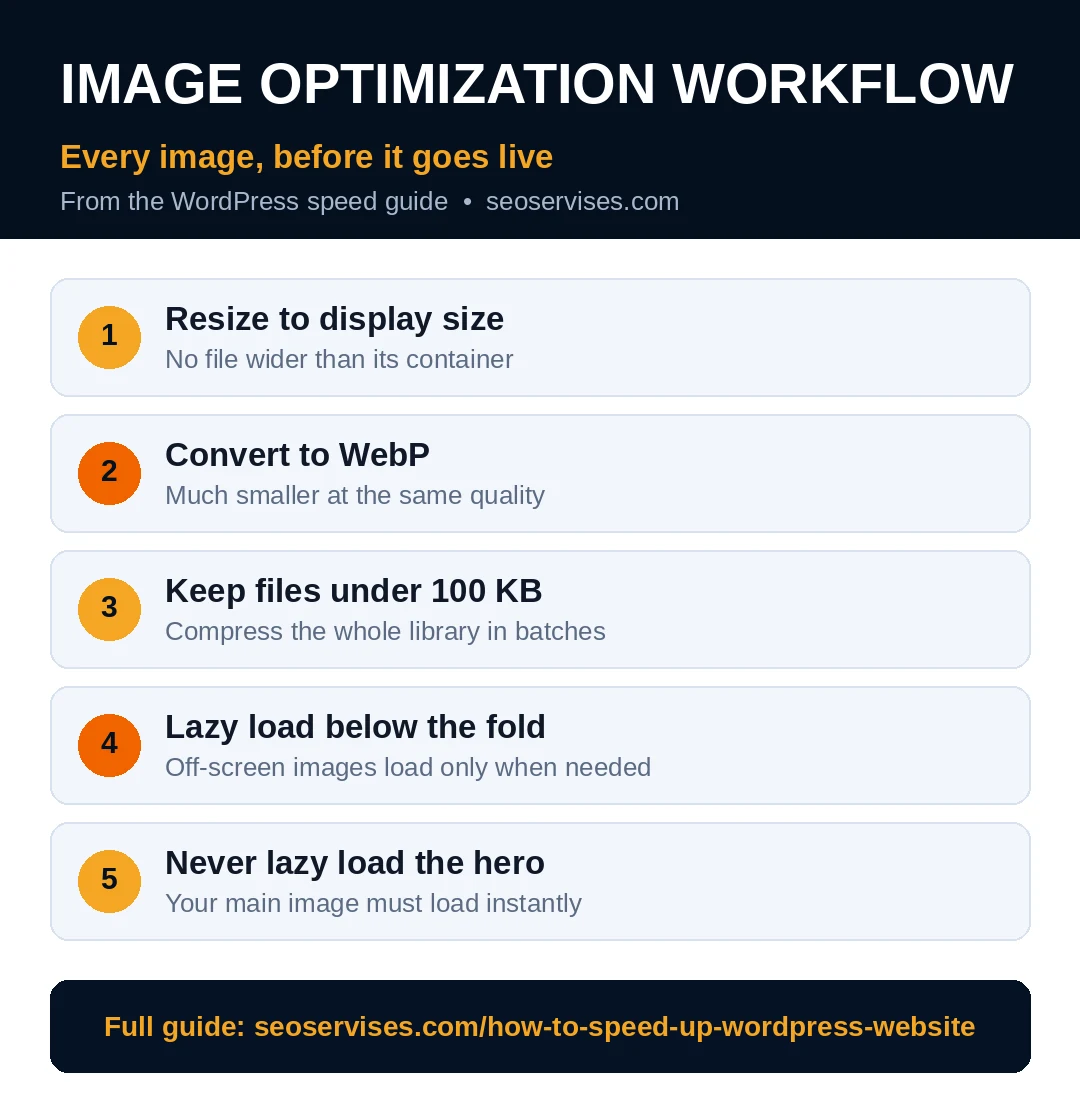
Resize each image to its display size first. A banner needs width near its container only. Convert images to WebP format before upload. WebP files stay much smaller at equal quality.
Keep every image file under one hundred kilobytes. Compress existing libraries with an optimization plugin. Add lazy loading for images below the fold. Never lazy load your main hero image, though.
See the error list in our WordPress SEO mistakes guide for image pitfalls.
Step 5: Add a CDN for Wider Reach
A content delivery network copies files across many cities. Visitors download from the server nearest to them. Distance delays shrink for national and global audiences.
Cloudflare offers a popular free starting tier. Setup usually means changing your domain nameservers once. Your caching plugin may include CDN integration helpers. Test forms and checkout after any CDN change.
Local-only businesses gain less from a CDN. A plumber serving one city may skip this step. National sellers and bloggers gain far more here.
Do I need a CDN for a small website?
You need one only if visitors span wide regions. Spread-out audiences feel real latency gains from CDNs. Single-city businesses often see minimal change instead. The free tier makes testing cheap and low risk. Measure before and after one week of data.
Step 6: Cut Heavy Plugins and Scripts
Every plugin can add scripts, styles, and database queries. One bloated plugin hurts more than several lean ones. Social feeds and sliders often cost the most speed.
List every plugin and note its real job. Delete anything unused, duplicate, or rarely needed. Replace heavy tools with lighter options where possible. Test speed after each removal, one at a time.
Defer JavaScript that is not needed at first paint. Delay chat widgets and tracking until user interaction. Your caching plugin may handle these settings safely. WordPress core guidance on performance best practices covers these methods well.
Step 7: Clean the Database
Old revisions, spam comments, and transients bloat databases slowly. Queries then take longer on every page load. Cleanup is quick and low risk with backups.
Limit post revisions inside your site configuration. Delete spam and trashed items every month. Remove data left behind by deleted plugins. Use a trusted optimization plugin for scheduled cleanups.
Why is my WordPress site still slow after optimization?
Check hosting limits and plugin conflicts first. One bad plugin can undo every other fix. Heavy themes and page builders also add overhead. External fonts and trackers often hide as culprits. Disable items in groups on staging to isolate causes.
Step 8: Fix Code Delivery Basics
Minify CSS and JavaScript to shrink file sizes. Your caching plugin usually offers one-click minification. Test your layout after enabling each option. Broken styles mean one file needs exclusion.
Remove unused CSS where your tools support it. Inline only the styles needed above the fold. Combine files carefully on older HTTP setups only. Modern HTTP versions handle parallel files well already.
Preload your hero image and main font files. Preloading tells browsers what matters most first. That single hint often improves LCP scores fast.
Table 2: Fix Impact and Effort Guide
| Fix | Typical impact | Effort |
|---|---|---|
| Page caching setup | High | 30–60 minutes |
| Image resize and WebP | High | 1 hour per library |
| Hosting upgrade | High | Half a day with migration |
| CDN setup | Medium | 30 minutes |
| Plugin cleanup | Medium to high | 1 hour |
| Database cleanup | Low to medium | 20 minutes |
A Real Example: A Salon Site in Ohio
A hair salon in Columbus had a stylish site. Big gallery photos filled every page of it. Mobile bookings stayed low despite good local reviews. The owner blamed Instagram for stealing her customers.
A speed test told a different story entirely. Her homepage took nine seconds on mobile data. Three gallery photos each weighed over two megabytes. No caching plugin was installed at all.
She resized photos and converted them to WebP. She enabled caching through her host control panel. Load time fell below three seconds within days. Mobile booking requests rose clearly within one month.
Nothing about her services or prices had changed. Only the waiting time between tap and page changed. That gap decides whether mobile visitors stay or leave. Speed fixes often release demand you already earned.
Mobile Speed Deserves Extra Attention
Most small business traffic now arrives on phones. Phones use slower processors than desktop computers. Cell networks also vary block by block daily. Your desktop test hides those real conditions completely.
Test with a throttled mobile profile every time. Check tap response on menus and booking buttons. Remove popups that cover content on small screens. Large tap targets help shaky hands and rankings.
Fonts deserve a quick check on mobile too. Custom fonts can delay visible text noticeably. Limit font weights to two or three total. Load fonts from your own server when possible.
Videos should never autoplay with sound on mobile. Heavy video backgrounds punish every phone visitor equally. Use a still poster image until users press play. That choice protects both speed and data plans.
Keep Speed Gains With a Monthly Routine
Speed decays as sites grow and change monthly. New plugins, images, and scripts creep in quietly. A short monthly routine protects your earlier work.
Run PageSpeed tests on three key pages monthly. Check Core Web Vitals inside Search Console too. Review field data, not only lab scores. Field data reflects your real visitor experience.
Our full technical SEO audit checklist includes speed checks in context.
How often should I check my WordPress site speed?
Check speed every month as routine maintenance. Test immediately after theme, plugin, or hosting changes. Watch Search Console field data every few weeks. Sudden score drops often follow one recent change. Catching drops early keeps fixes small and cheap.
When to Get Expert Help
Some speed problems hide deep in theme code. Server tuning and caching conflicts confuse most owners. Hours of guessing can break a live store.
Get help when scores stay red after basic fixes. Get help before migrations or major redesigns too. An expert audit names exact bottlenecks quickly. That clarity saves days of random plugin trials.
Ready for a faster site without the guesswork? Contact us for a free speed review today.
Frequently Asked Questions
What slows down a WordPress website the most?
Slow hosting and huge images cause most delays. Heavy plugins and uncached pages follow close behind. External scripts like trackers add hidden weight too. Start diagnosis with hosting response time first. Then audit images page by page for size.
Will speeding up my site improve my rankings?
Yes, faster pages support better rankings over time. Core Web Vitals form part of Google page experience signals. Speed also lifts conversions and lowers bounce rates. Rankings still need strong content and links too. Treat speed as a foundation, not a shortcut.
How much does WordPress speed optimization cost?
Basic fixes cost nothing beyond your own time. Premium caching plugins add a modest yearly fee. Managed hosting costs more than shared hosting monthly. Expert services charge by audit scope and fixes needed. Most small sites recover costs through higher conversions.
Can I speed up WordPress without plugins?
You can fix hosting, images, and content without plugins. Server-level caching may come from your host directly. Code changes can handle minification and deferral manually. Plugins simply make these tasks safer and faster. Beginners should prefer tested tools over manual code.
Does a faster website really get more sales?
Yes, small delays cut conversions in study after study. Buyers abandon slow carts and forms very quickly. Mobile shoppers show the least patience of all. Even one second saved can lift completed orders. Speed work pays back beyond search rankings alone.






3 Comments